
Who Receives Booking Email Notifications?
Overview
When a booking is confirmed, updated, or cancelled, Vacation Labs sends email notifications automatically. By default, these go to the primary contact (the person who made the booking) and are CC’d to your support email (configured in Settings > Support Details). You can extend this to include trip managers, external team members, and all participants.
Trip guide / supervisor / manager emails
If specific team members manage specific trips — a tour guide, a trip coordinator, a regional manager — you can add their email addresses per trip. They’ll receive confirmation and cancellation emails for bookings on that trip only.
- Go to Products > Trips and edit the trip.
- Click on E-MAIL NOTIFICATIONS in the left sidebar.
- Under “Trip guide / supervisor / manager emails”, enter the email addresses (comma-separated for multiple).
- Click Save.
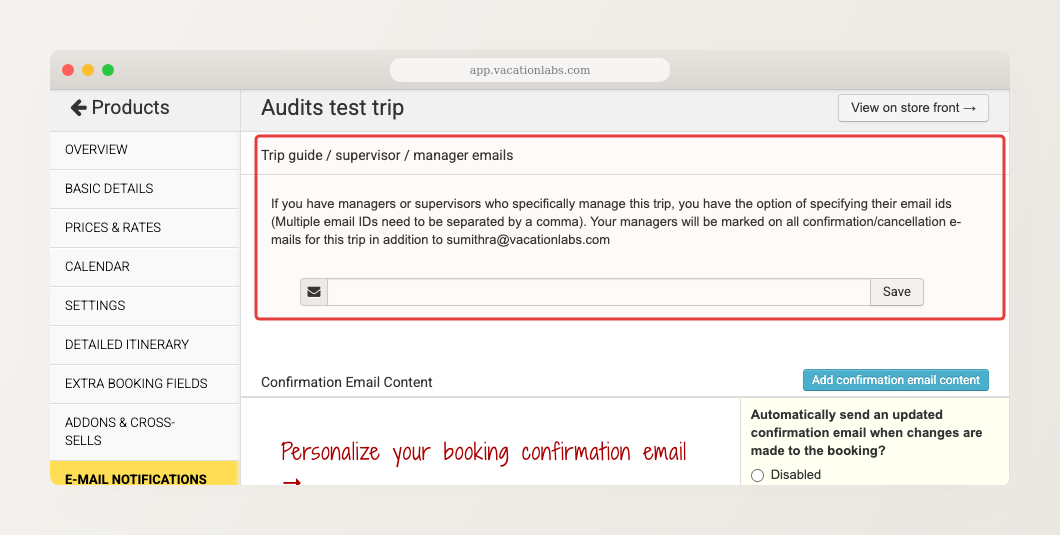
These emails are in addition to the account admin email. Managers will be CC’d on all confirmation and cancellation emails for this trip.
Global: email booking notifications to non-users
If you have team members who don’t have a Vacation Labs login but need to receive booking notifications for all trips — e.g., an operations manager, an accountant, or on-ground staff — you can add their email addresses globally.
- Go to Website > Booking Engine.
- Under “Email booking notifications to”, add the email addresses (comma-separated for multiple).
- Click Save.
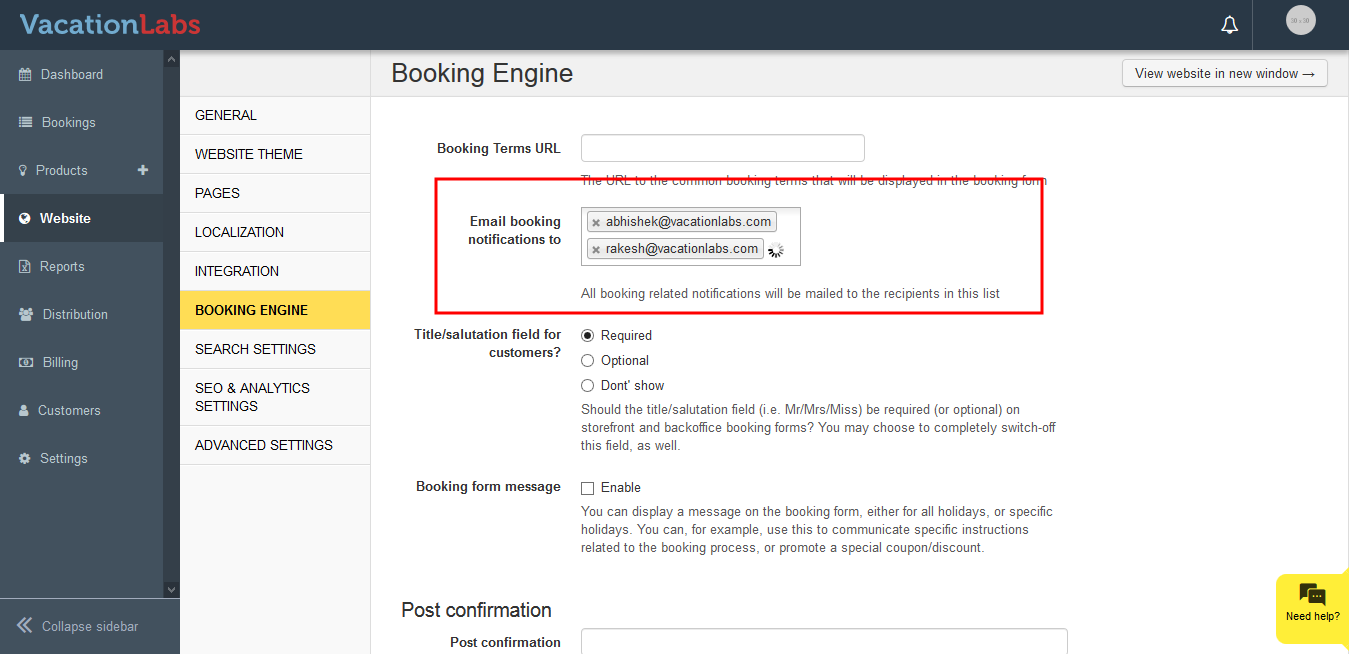
Use per-trip manager emails when different people manage different trips. Use global non-user emails when someone needs to see bookings across all trips.
Send booking emails to all participants
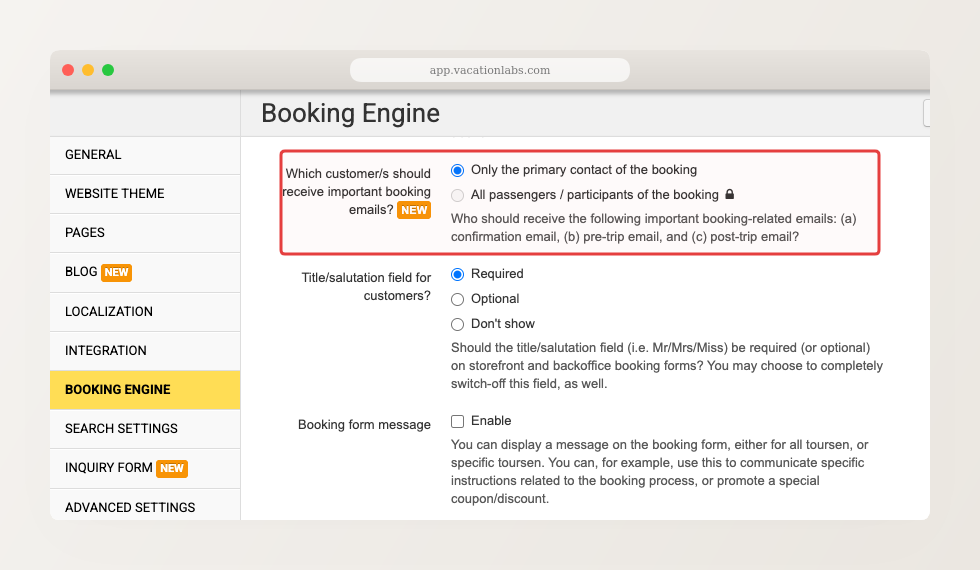
By default, booking confirmation and update emails are sent only to the primary contact — the person who filled out the booking form. For group bookings (families, friend groups, corporate outings), you may want every participant to receive these emails directly.
-
Go to Website > Booking Engine.
-
Enable “Send booking emails to all participants”.
-
Click Save.
This is an account-wide setting — it applies to all automated booking emails (confirmations, updates, cancellations) across all trips. Participants must have an email address on file to receive emails.
Summary
| Who | Where to configure | Scope |
|---|---|---|
| Trip managers / guides / supervisors | Products > Trips > [trip] > E-MAIL NOTIFICATIONS | Per trip |
| Non-users (operations, accounting) | Website > Booking Engine | All trips |
| All participants in a booking | Website > Booking Engine | All trips |