
How to Send Payment Links to Customers
Overview
For bookings created in the backoffice or bookings with an outstanding balance, you can send a payment link to customers so they can pay online. The customer receives an email with a secure link to complete the payment.
This is useful for collecting deposits, balance payments, or any ad-hoc amounts.
How to Create a Payment Request
-
Go to Bookings and open the booking you want to collect payment for.
-
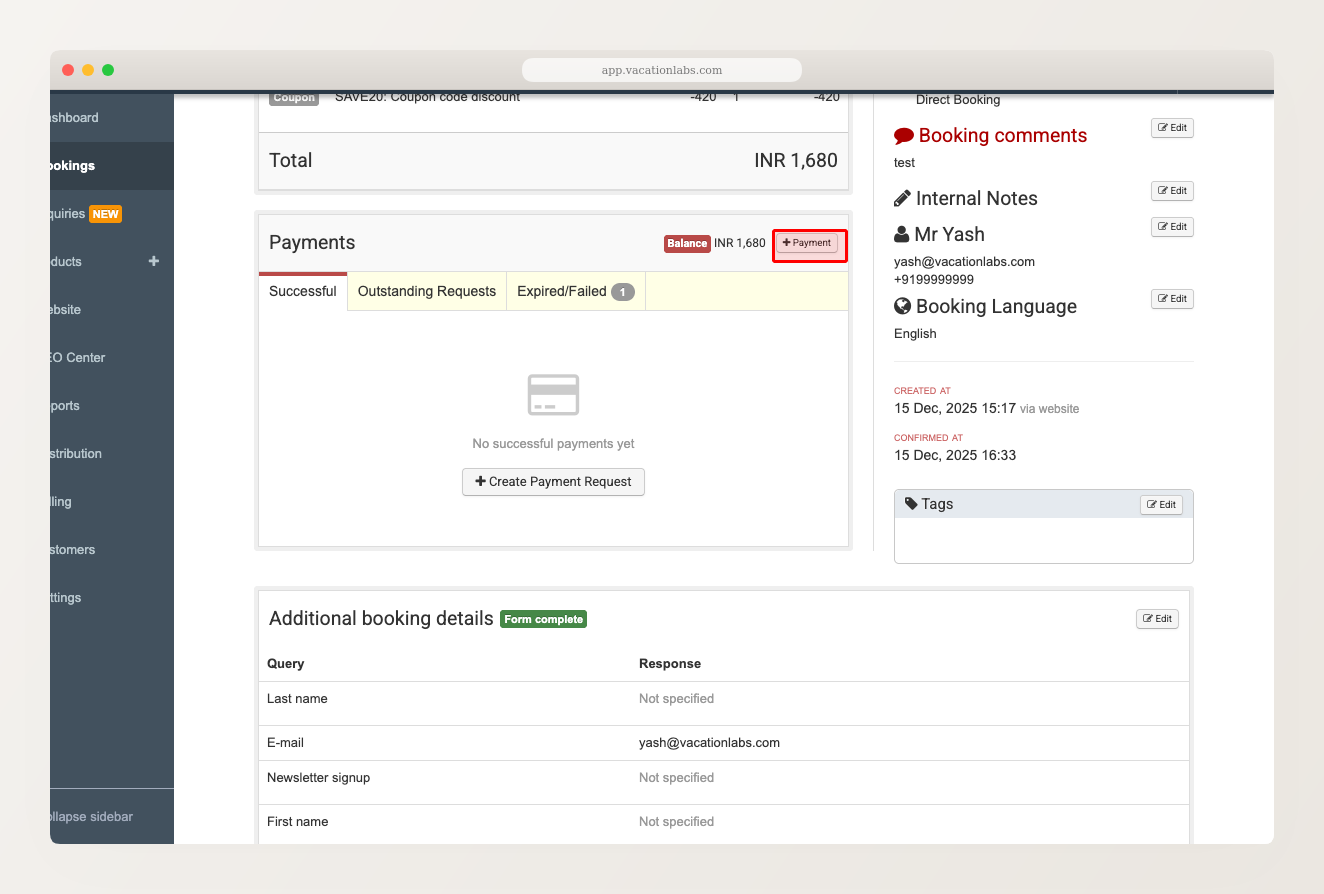
Scroll down to the Payments section and click the + Payment button.
-
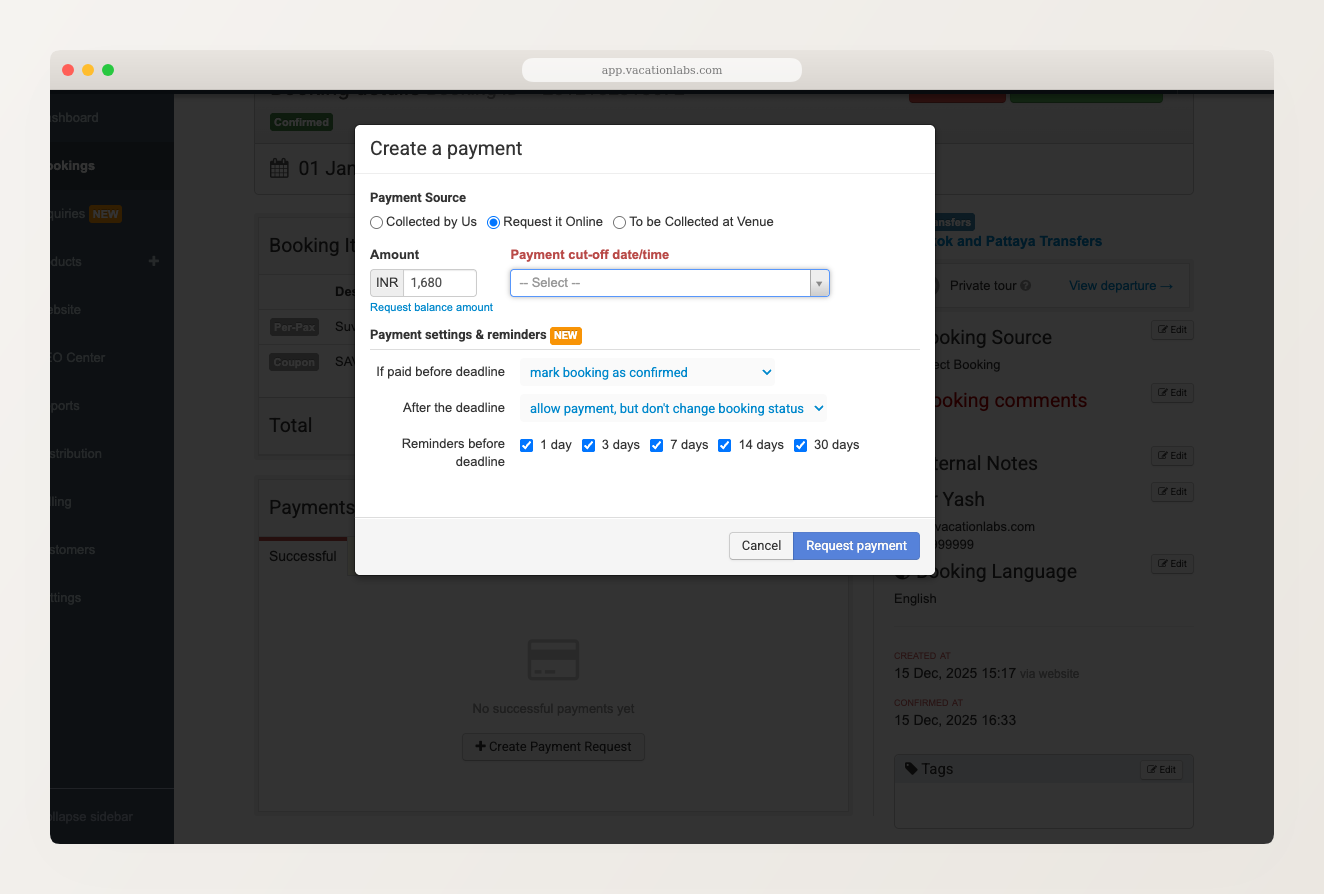
In the Create a payment dialog, select Request it Online as the payment source.
-
Enter the Amount to collect. This auto-fills with the outstanding balance, but you can change it to any amount.
-
Set the Payment cut-off date/time — the date and time by which the customer must pay.
-
Review the Payment settings & reminders at the bottom of the dialog (see next section).
-
Click Request Payment to send the payment link to the customer.
Payment Settings & Reminders
The bottom of the dialog shows additional options that control what happens before and after the payment deadline:
- If paid before deadline — controls what happens to the booking status when the customer pays on time. Options include:
- Mark booking as confirmed — automatically confirms the booking
- Move to pending confirmation — moves the booking to a pending state for you to review
- Allow payment but don’t change booking status — records the payment without changing the booking status
This dropdown defaults to your trip’s confirmation mode. For example, if the trip is set to auto-confirm bookings on payment, the dropdown will default to “Mark booking as confirmed.”
-
After the deadline — determines what happens if the customer tries to pay after the deadline has passed.
-
Reminders before deadline — schedule automatic reminder emails at 1, 3, 7, 14, or 30 days before the deadline. Check the boxes for the reminders you want to send.
For high-value bookings, enable multiple reminders (e.g., 7 days and 1 day before) to reduce the chance of missed payments.
Tracking and Managing Payment Requests
After sending a payment request, you can track its status in the Payments section of the booking. There are three tabs:
- Successful — payments that have been completed
- Outstanding Requests — payment links that are still active or overdue
- Expired/Failed — payment links that passed the deadline or encountered an error
Click the Outstanding Requests tab to see pending payment links and manage them:
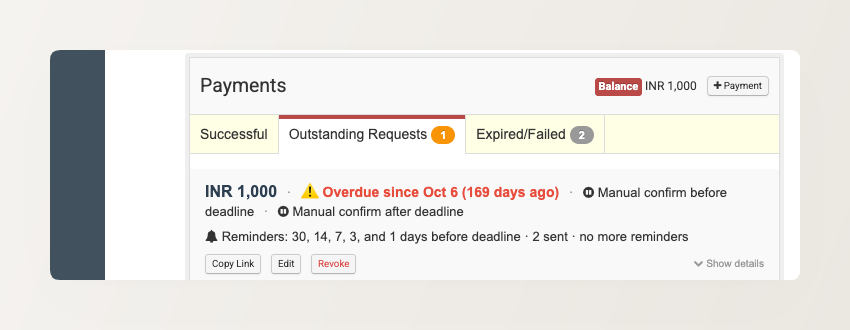
Each outstanding request shows the amount, deadline status, confirmation mode, and reminder schedule. You can:
- Copy Link — copy the payment link URL to share manually (e.g., via WhatsApp or chat)
- Edit — change the amount, deadline, or reminder schedule
- Revoke — cancel the payment request so the customer can no longer use the link
Related Articles
- Payment Flows — set up automatic balance payment requests with deposit rules, deadlines, and scheduled reminders
- Modifying Email Templates — customize the payment request email your customers receive