
How to sync your tours with Viator ?
Overview
This guide walks how to seamlessly connect your Vacation Labs tours with Viator to synchronize availability and streamline your booking management. This integration allows you to efficiently distribute your tours across both platforms while maintaining real-time updates.
Prerequisites
Before beginning, ensure you have:
-
An active Viator account with API access enabled
-
All tours have locations added (required for synchronization)
Step-by-Step Sync Process
Access the Marketplace Dashboard
-
Log in to your Vacation Labs admin panel
-
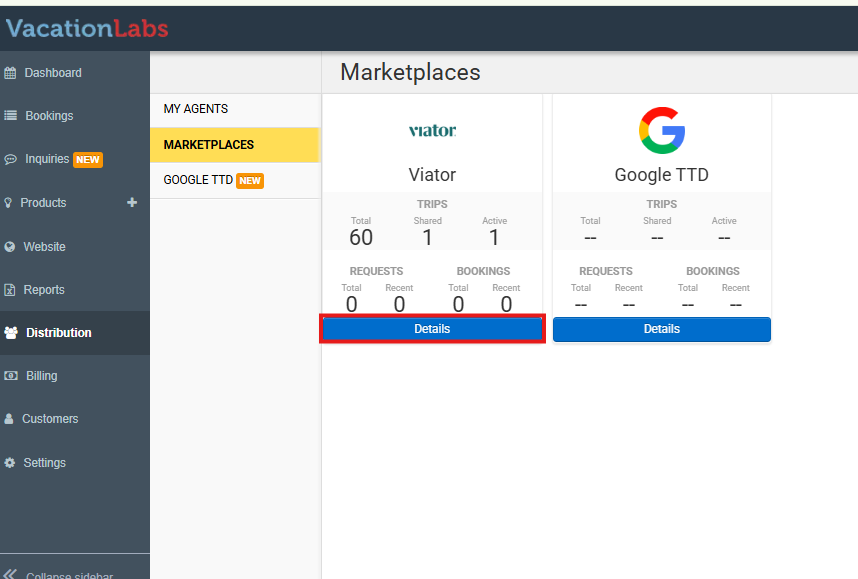
Navigate to Distribution > Marketplaces
-
Click Details on the Viator card
Initiate Tour Sharing
-
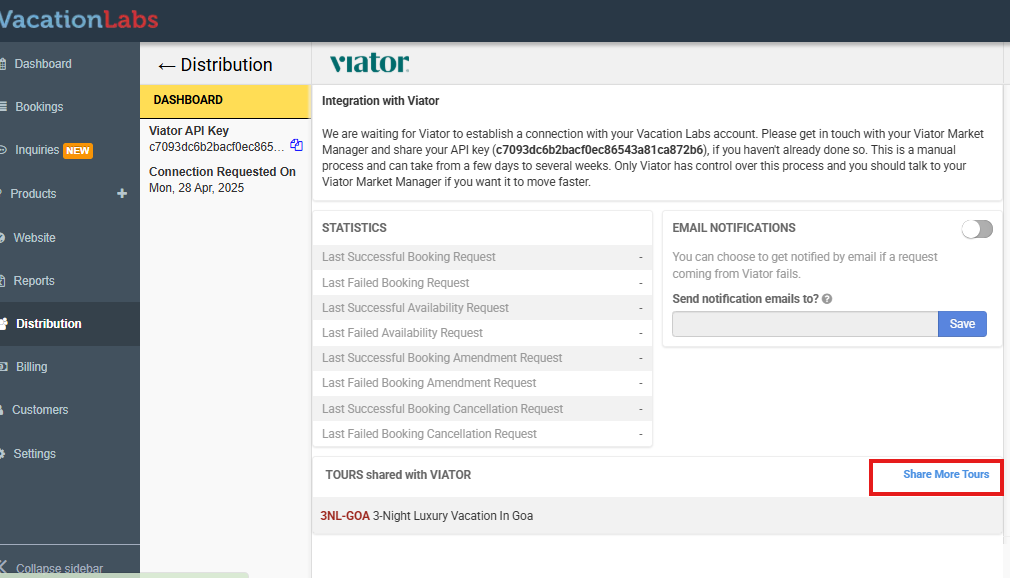
In the Viator dashboard, select Share More Tours**
 **
** -
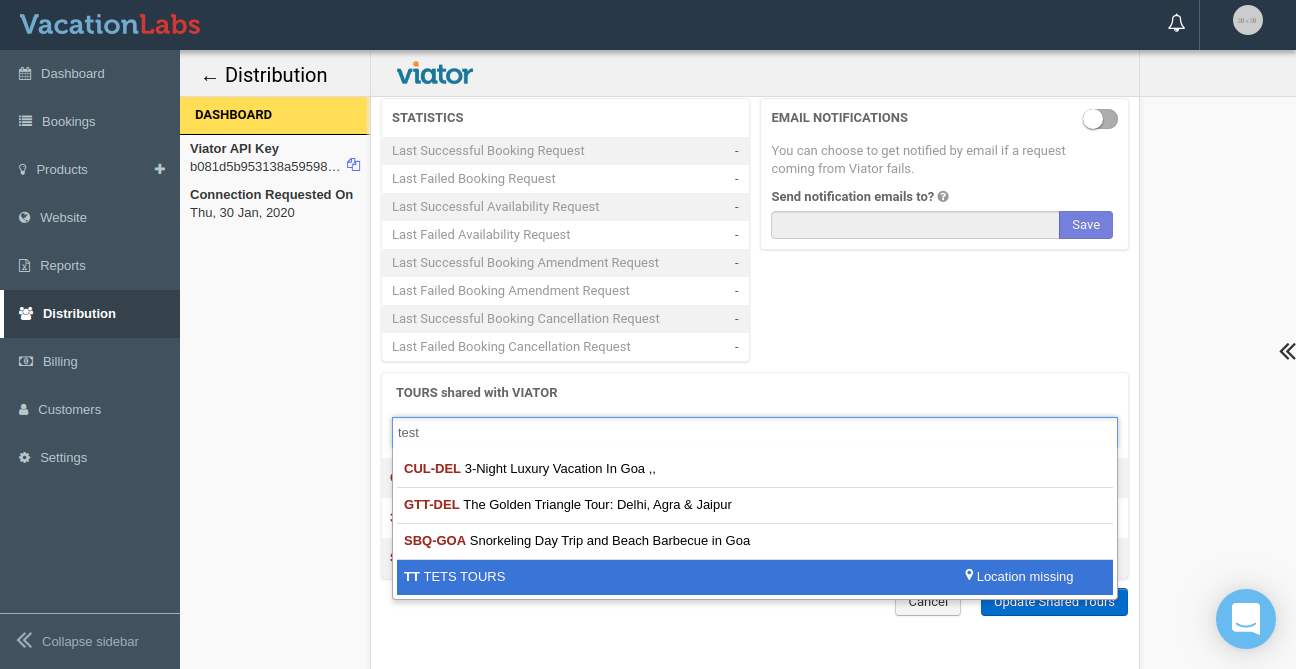
Search and Click on the tour you wish to share with Viator. You can add more tours by repeating this step. Make sure that Location has been added in each product you plan to connect with Viator. It is a mandatory field to begin mapping.
Note: Only tours with locations will be available. Tours missing locations will show “Location Missing” in results
Select and Share Tours
Once finished with selecting Tours
-
Click Update Shared Tours to confirm your selection
-
View your shared tours in the connected products list
-
You will now be able to see the tours that are being shared on Viator.

Note:
-
Processing Time: Viator typically updates within 24 hours (despite hourly API checks)
-
Final Verification:
-
Log in to your Viator account
-
Locate each tour under “Product Connection”
-
Complete individual product mapping
-
Please go through this article for detailed guide on connecting Vacation Labs and Viator