
Adding and Managing Team Members
Overview
You can invite team members and control what they can access from Settings > Users & Permissions. The user list is split into Active and Inactive tabs with counts, so you can quickly see who has access.
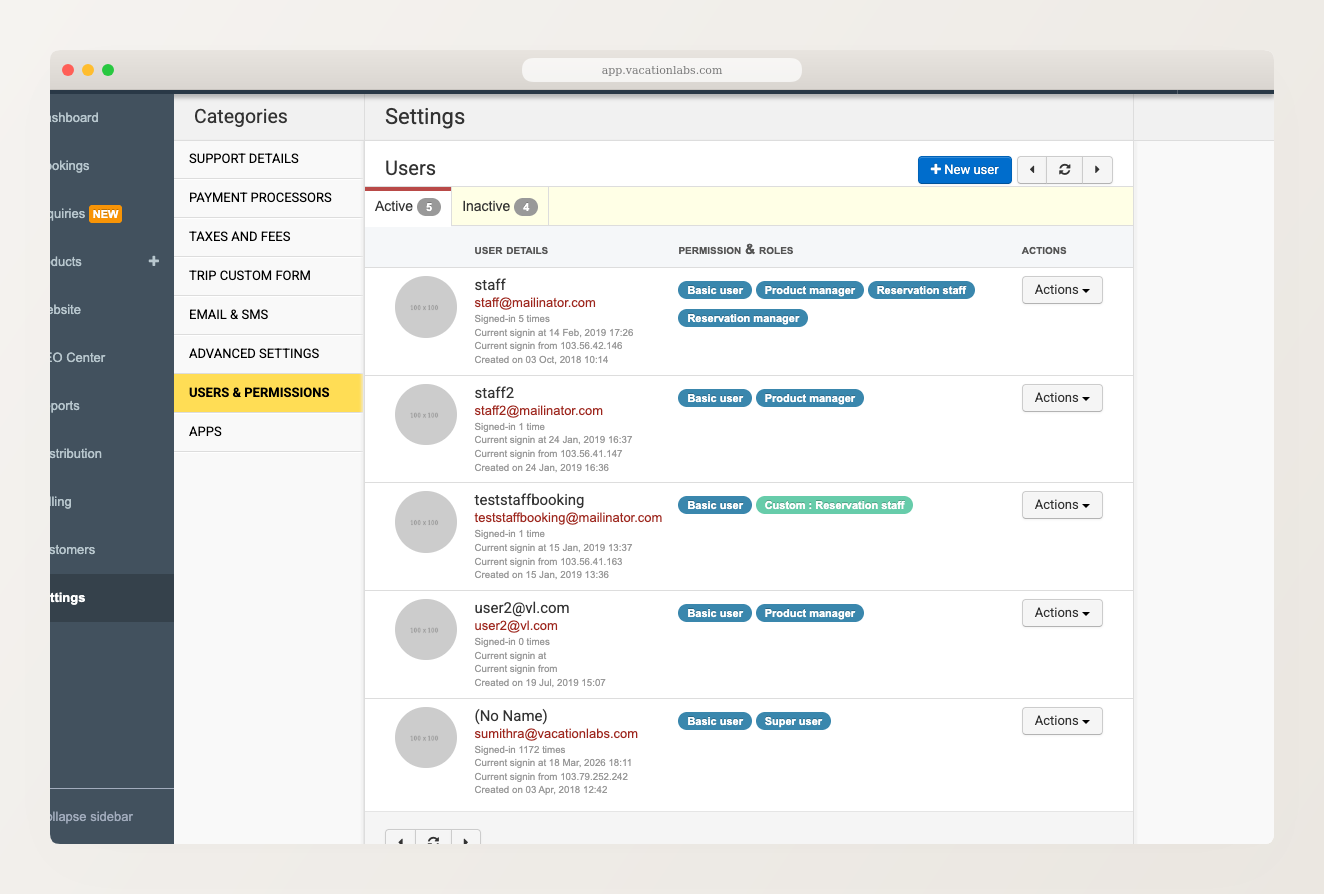
Adding a new team member
- Go to Settings > Users & Permissions.
- Click + New user.
- Enter the following details:
- Name — the team member’s display name.
- Email — this will be their username for logging in.
- Password — set an initial password. The user can change it after logging in.
- Phone Number — their personal mobile number with country code (e.g., +91 98765 43210). Minimum 8 characters.
- Assign their access rights (see below).
- Click Create.
Share the login credentials (email and password) with the team member so they can access their account.
The phone number must be a personal mobile number, not a shared number. It will be used for login OTP, account security, and urgent support communication.
Assigning roles & permissions
When creating or editing a user, you assign Access Rights that determine what they can do in the backoffice. You can choose from pre-set roles:
- Product Manager — manage trips, products, pricing, and related settings.
- Content Manager — manage website content, collections, and static pages.
- Reservations Staff — handle bookings, inquiries, and reservation reports.
- Reservations Manager — manage all aspects of bookings, payments, and reports.
- Finance Manager — handle payments, refunds, and financial reports.
- Super User — full access to all system settings and controls.
- Event Crew — manage check-ins, check-outs, and on-ground booking activities.
- Supplier — manage trips, booking capacity, and supplier-related reports.
- Marketplace Supplier — manage trips, bookings, payments, and content for marketplace operations.
Each role can be toggled On, Off, or set to Custom to manually select specific permissions.
A user can see all sections of the backoffice, but they can only modify areas they have permissions for.
Editing a team member
- Go to Settings > Users & Permissions.
- Find the user in the list and click Actions > Edit roles & permissions.
- Update their phone number or toggle role permissions as needed.
- Click Save.
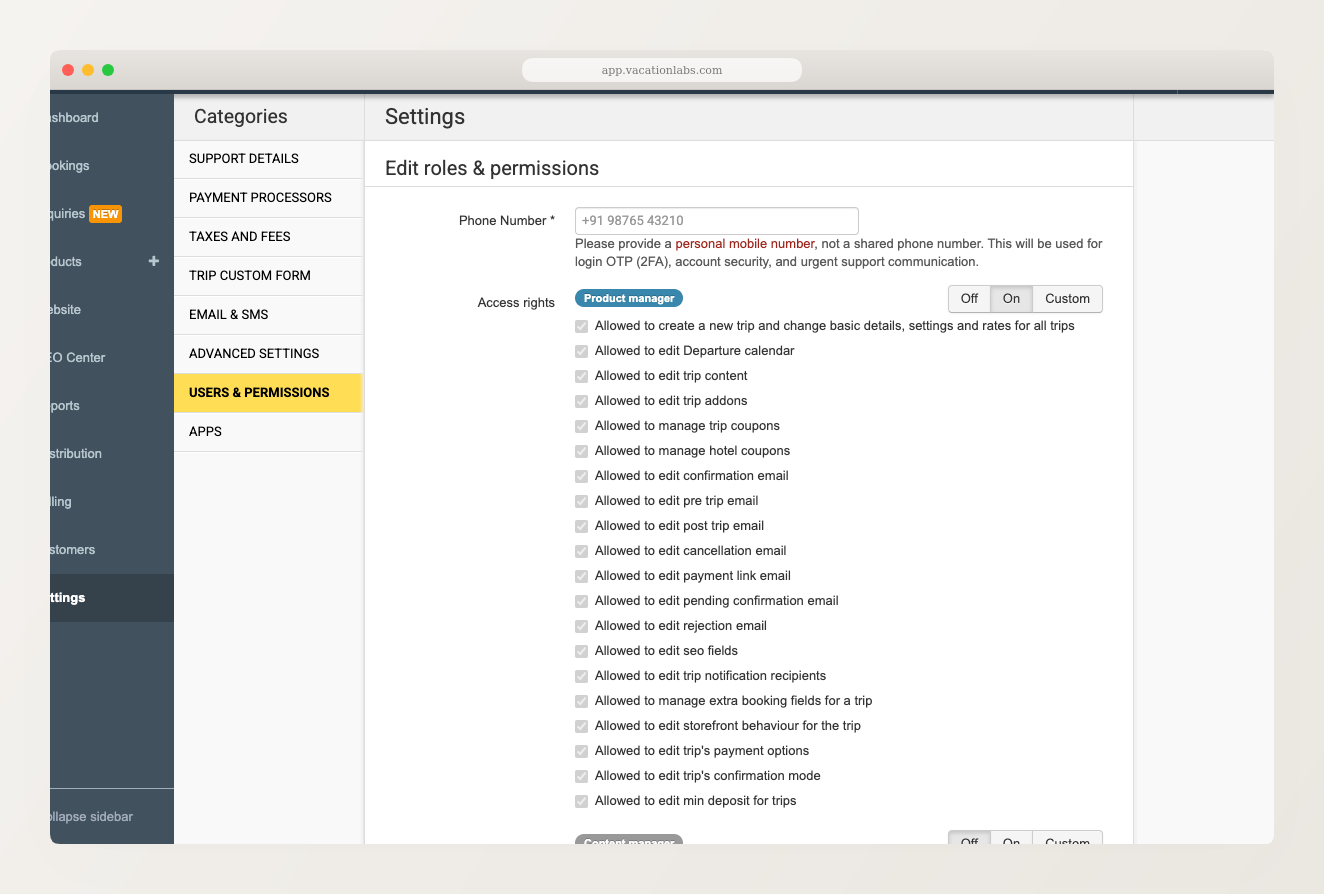
Disabling and re-enabling users
To revoke a team member’s access, click Actions > Disable user on their row. Disabled users are moved to the Inactive tab and are immediately logged out of all devices.
To restore access, switch to the Inactive tab, find the user, and click Actions > Activate user.
For more details, see How to disable a user?
Related Articles
- Managing Your Account: Profile & Security — edit your own profile, change your password, and manage sessions.