
Managing Your Account: Profile & Security
Overview
The My Account page lets you manage your personal profile and security settings. It has two tabs:
- Profile — your name, contact details, photo, and bio.
- Security — password, roles, and active sessions.
To access it, click your profile avatar in the top-right corner of the backoffice, then select My Account.
Editing your profile
On the Profile tab you can update:
- Name — your display name across the backoffice.
- Email — shown for reference (used for login and notifications).
- Phone Number — your personal mobile number in country code format (e.g., +91 98765 43210). This is used for login OTP, account security, and urgent support communication.
- Profile Photo — upload or remove your photo.
- Designation — your role or title (e.g., “Travel Writer, CEO”).
- Bio — a short description about yourself.
- Social Links — add links to your social media profiles.
Click Save Profile when you’re done.
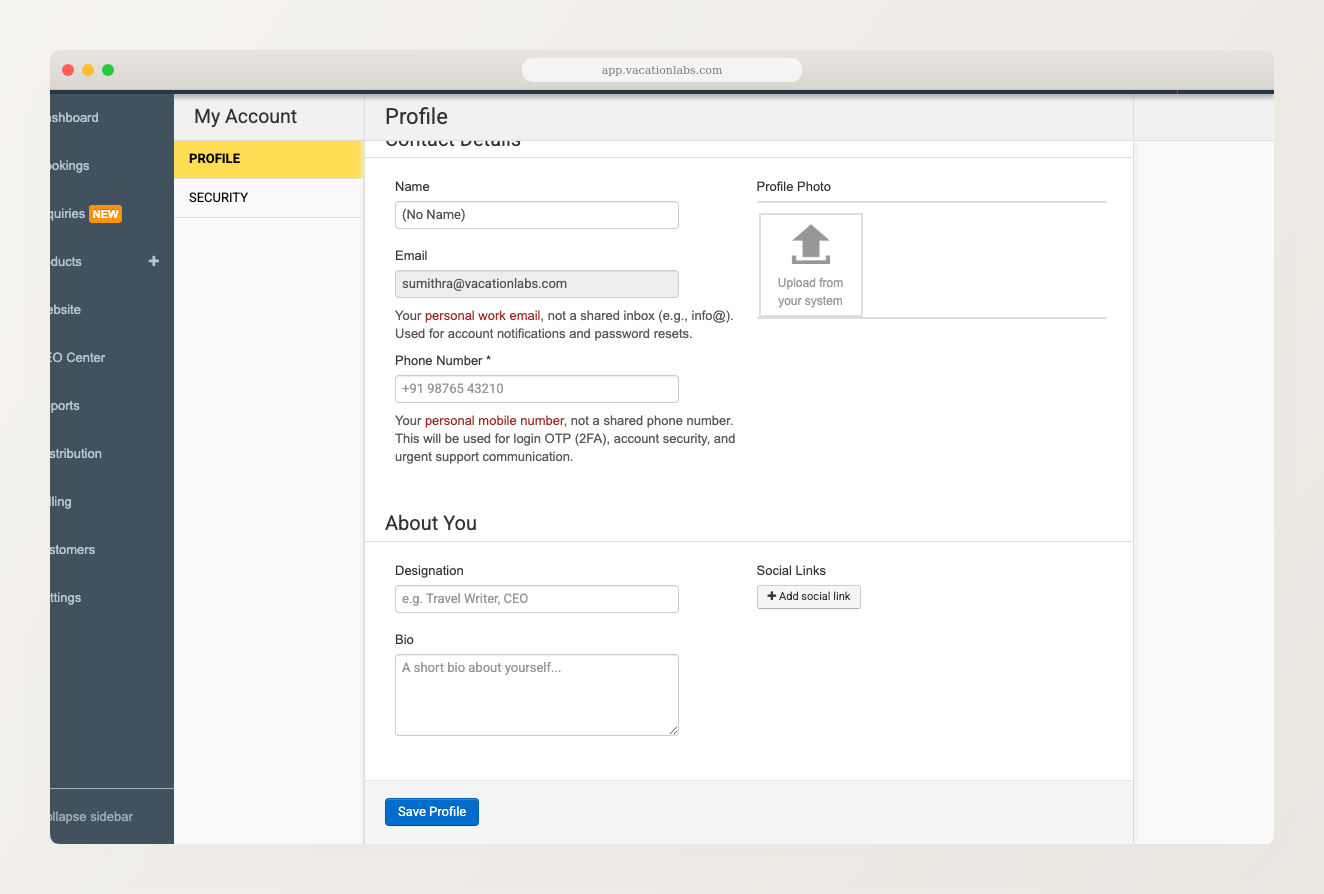
Your phone number must include a country code (e.g., +91) and be at least 8 characters long. This should be your personal mobile number, not a shared phone number.
Changing your password
-
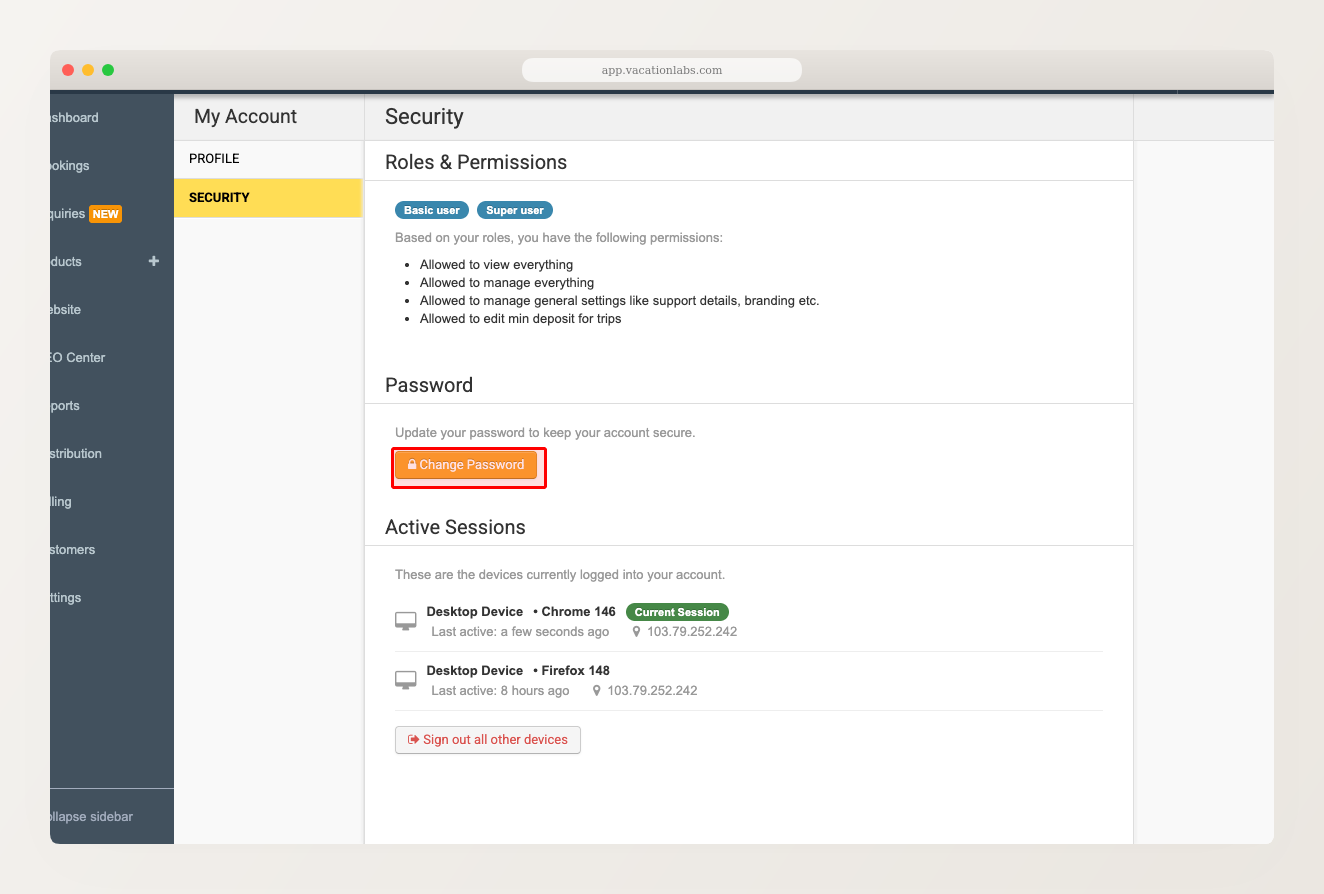
Go to the Security tab.
-
Click the Change Password button.
-
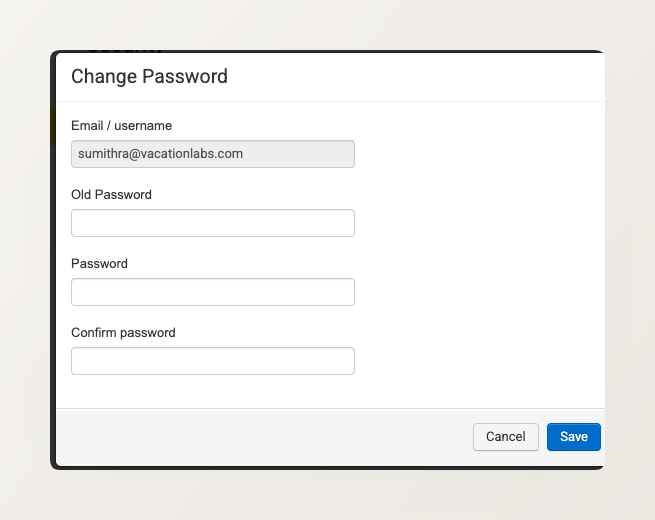
In the dialog that opens, enter your Old Password, then your new password twice to confirm.
-
Click Save.
You must enter your current password to change it. If you’ve forgotten your password, use the Forgot Password link on the login page to reset it via email.
Viewing your roles & permissions
The Security tab also displays your assigned roles (e.g., Basic user, Super user) and a list of what you’re allowed to do. This section is read-only — only an admin can change your roles from Settings > Users & Permissions.
Managing active sessions
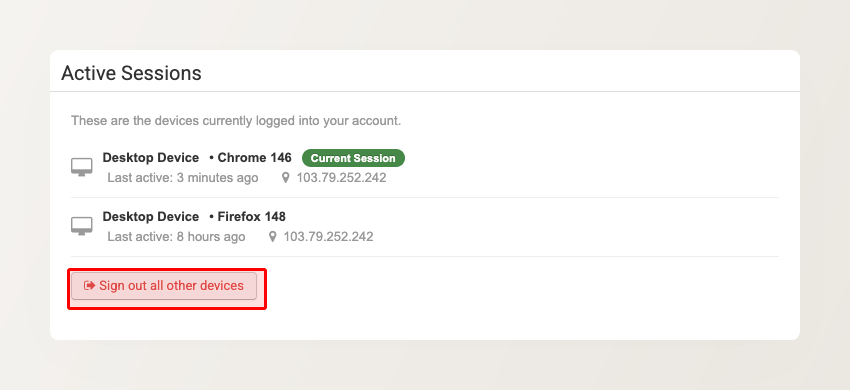
The Active Sessions section shows all devices currently logged into your account, including the browser, last active time, and IP address. Your current session is marked with a green Current Session badge.
To log out of all other devices, click Sign out all other devices. This signs you out everywhere, including devices where you clicked on Remember me when signing in.
Are multiple people using the same login?
The backoffice may occasionally show a prompt asking “Are multiple people using the same login?” This appears when it detects a single login signed in from several places at the same time — a common sign that one set of credentials is being shared across a team.
You have two ways to respond:
- Add your team — give each person their own login instead of sharing one. This is the recommended fix: separate logins are more secure and let you control what each person can access. Every plan includes unlimited team logins at no extra cost. See Adding and Managing Team Members for how to set them up. This option is shown to account administrators (super users); if you’re not an administrator, ask the person who manages your account to add the team.
- Not shared? Sign out other sessions — if it wasn’t actually shared (for example, you’re simply signed in on your own laptop and phone), this ends every other session so only your current one remains, the same as Sign out all other devices above.
This is a one-off nudge, not a recurring alert. If you dismiss it with Remind me later, it won’t appear again for about a day.
Related Articles
- Adding and Managing Team Members — invite team members and manage their roles.
- How to disable a user? — disable or re-enable team member accounts.