
How to change the default currency?
Your account’s default currency is set during the initial sign-up process. This currency is used for all new products and services you create. This article explains how to change this default setting and how it affects your existing data.
Important Note: Changing your default currency only affects new products. It does not convert existing booking values or payment amounts. Historical financial data will remain in the currency it was originally recorded in.
Steps to Change the Default Currency
Follow these steps to update your account’s default currency.
-
Log in to your Vacation Labs account.
-
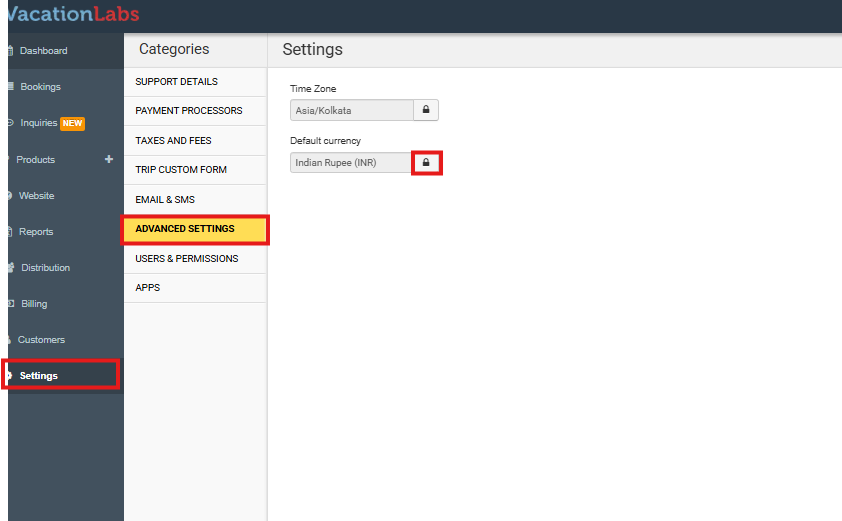
Navigate to SETTINGS and then select ADVANCED SETTINGS from the menu.
-
On the Advanced Settings page, locate the Default Currency section. To make changes, you must first unlock the setting. Click the lock icon (find next to the currency field) to enable editing.
-
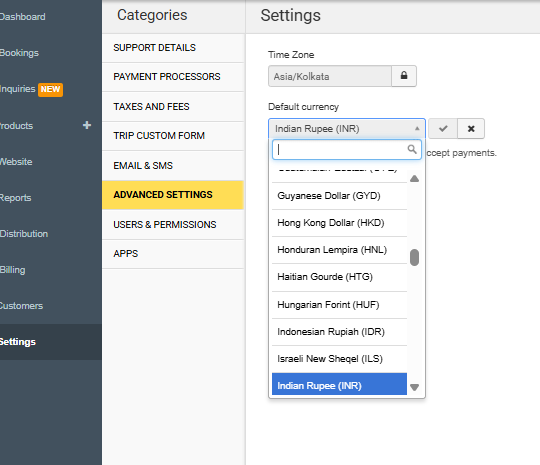
Once unlocked, click on the currency field. This will open a dropdown list of all available currencies.
-
Select your new preferred default currency from the list.
-
To save your change, click the check mark (✓) button.
What Happens to Existing Products?
If you have already created products (tours, activities, etc.) in the old currency, the system will immediately show you a warning message after you save the new default currency (Refer Screenshot Below).
-
This message will list all existing products that are still priced in the previous currency.
-
From this message, you will have the option to update all listed products to the new default currency with a single click. This is highly recommended to maintain consistency across your product catalog.

NOTE: This change only updates product prices. It does not alter the currency of past transactions, bookings, or recorded payments. Those records will remain in their original currency for accounting accuracy.