
Viewing Active Sessions on Your Account
Overview
Your profile page shows a list of all active sessions for your account, including the IP address and browser (user agent) for each session. This helps you verify that only authorized devices are logged in and spot any suspicious access.
Viewing your active sessions
-
Click your profile icon in the top-right corner of the backoffice.
-
Click Profile.
-
Scroll down to the Active Sessions section.
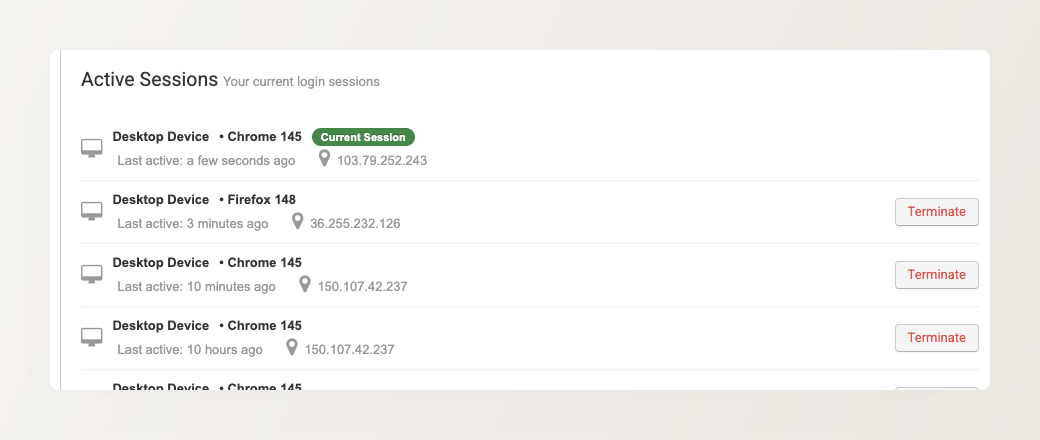
Each session shows:
- Device type and browser — e.g., “Desktop Device • Chrome 145”
- Last active — how recently the session was used (e.g., “a few seconds ago”, “10 hours ago”)
- IP address — the IP address associated with the session
- Current Session badge — a green label on the session you’re currently using
- Terminate button — end any other session remotely
If you see an unfamiliar IP address or browser, click Terminate to end that session immediately, then change your password. Go to Profile > Change Password or see How to change the password of your account.