
Banner Slides: Adding Slides and Enabling Auto-Play
Overview
Banner slides appear at the top of your pages as a full-width slideshow. You can add multiple slides to create a rotating carousel that showcases tours, collections, promotions, or custom content with images, text overlays, and call-to-action buttons.
Banner slides work on your Homepage, static pages (About, Contact, landing pages), and collection pages — not just the homepage.
Adding a banner slide
-
Go to Website > Pages and click the page you want to edit.
-
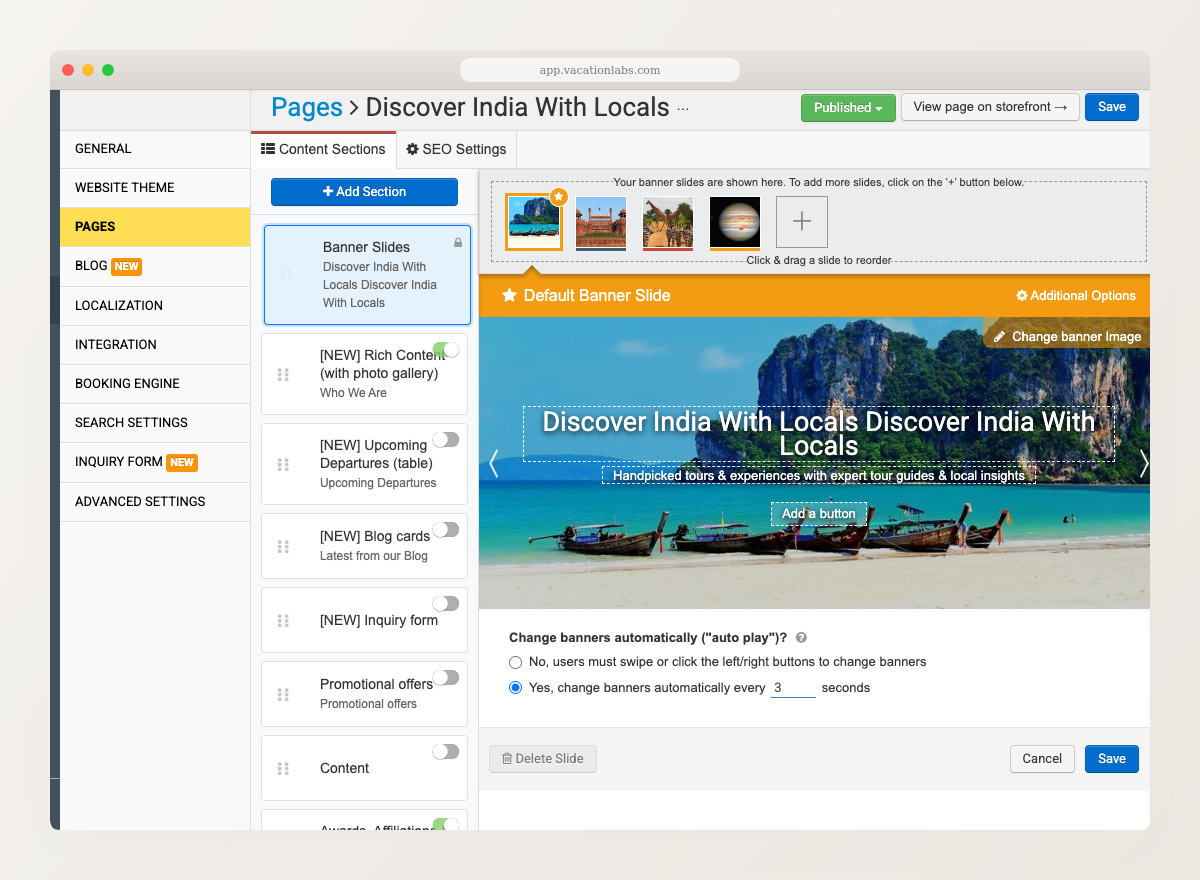
Click on the Banner Slides section.
-
Click the + button to add a new slide.
-
Choose the slide type:
Slide type What it shows Tour Tour name, image, duration, and price. Links to the tour page. Collection Collection name, image, price range, and tour count. Links to the collection page. Promotion Coupon name, image, and coupon code. Custom Your own image, headline, tagline, and a button with a custom link. -
Configure the slide details and click Save.
When adding a banner image, set the focus point so it displays properly across all devices. See Banner images and focus points for guidelines.
Reordering and removing slides
- Reorder: Drag and drop slides to change their display order.
- Remove: Hover over a slide and click the X button to delete it.
Enabling auto-play
Auto-play automatically rotates through your banner slides at a set interval, creating a dynamic slideshow effect.
-
Go to Website > Pages and click the page with banner slides.
-
Click on the Banner Slides section.
-
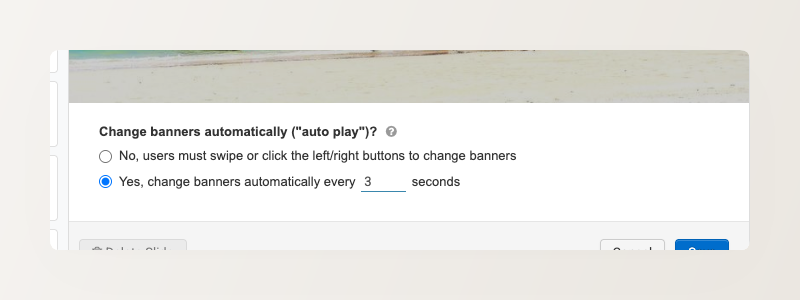
Under “Change banners automatically (‘auto play’)?”, select Yes, change banners automatically every ___ seconds.
-
Set the interval in seconds (e.g., 3 seconds between slides).
-
Click Save.
Auto-play works on both desktop and mobile across all header styles.
When a visitor manually interacts with the banner (swipes or clicks an arrow), auto-play stops for the rest of that page visit. It resumes on the next page load.
Adding a video to a banner slide
You can embed a YouTube video in a banner slide that either auto-plays in the banner or opens in a lightbox when clicked. See How to Add an Autoplay Video to a Page Banner for setup instructions.
Related Articles
- Banner images and focus points — image size guidelines and focus point selection
- Managing Website Sections — add, reorder, and manage all section types
- How to Add an Autoplay Video to a Page Banner — embed a YouTube video in a banner slide