How to deactivate/delete/unlist a trip
This guide explains how to change the status of a trip in your Vacation Labs account. You may need to do this to temporarily stop bookings, update trip details, or permanently remove a discontinued trip.
Key Differences: Deactivate vs. Unlist vs. Delete
It is important to understand the effect of each action before proceeding
Action | Effect on Public Visibility | Effect on Bookings | Effect on Search Engines (Google) | Data Recovery |
Deactivate | The trip is completely hidden. Anyone trying to access its direct URL will see a "Page Not Found (404)" error. | Bookings cannot be made. | The trip is removed from the sitemap and will not be indexed. | The trip and all its data remain in your account and can be reactivated at any time. |
Unlist | The trip is hidden from your public activity list and search. However, anyone with the direct URL can still view the trip page. | Bookings can still be made via the direct link. | The trip is removed from the sitemap and will not be indexed. | The trip and all its data remain in your account and can be relisted at any time. |
Delete | The trip is permanently removed from your account and the website. | Bookings cannot be made. | The trip URL will no longer function. | This action is permanent. Once deleted, a trip cannot be recovered. |
Important: A trip with any existing bookings cannot be deleted.
Common Scenarios for Each Action
-
Use Deactivate or Unlist to:
-
Prevent bookings while you update rates, itinerary, or other important details.
-
Stop bookings during the off-season.
-
Temporarily hide a trip you plan to offer again later.
-
-
Use Delete to:
-
Permanently remove a trip you have decided to discontinue.
-
Clean up old or unused trip drafts from your account.
-
Step-by-Step Instructions to Change a Trip’s Status
Follow these steps to deactivate, unlist, or delete a trip.
-
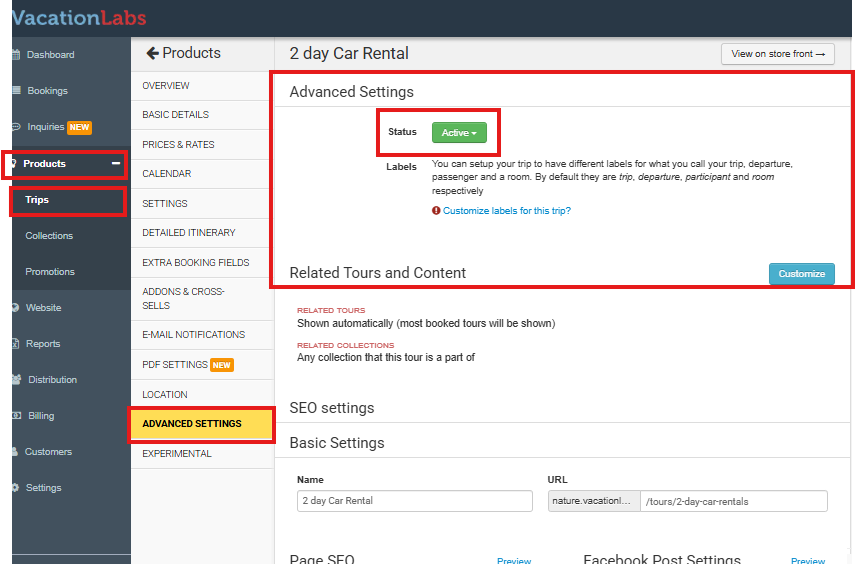
Navigate to the Trips Section: Log in to your Vacation Labs account. From the main dashboard, locate and select PRODUCTS in the left sidebar menu. Then, click on TRIPS. This will display a list of all your trips.
-
Edit the Desired Trip: Find the trip you wish to modify from the list. Click the EDIT button.
-
Access Advanced Settings: Inside the trip editor, locate and click on the tab or section labeled ADVANCED SETTINGS.
-
Change the Trip Status: In the Advanced Settings section, look for a dropdown menu labeled Status. Click this dropdown to reveal your options:
-
Active (Trip is live and bookable)
-
Unlisted (Trip is hidden but accessible via direct link)
-
Inactive/Deactivated (Trip is hidden and returns a 404 error)
-
Delete (Permanently remove the trip)
-
-
Save Changes: After selecting your desired status (Unlisted, Inactive, or Delete), confirm your action by clicking the Save or Update button. The system will apply the changes immediately. Note that a deleted trip will be permanently removed from your account within 60 minutes.