
Tour PDF (Tour e-Brochure)
The Tour PDF feature lets you offer a downloadable PDF brochure for each tour. Customers see a Download PDF button on your tour page and can save the brochure for offline reading or sharing. You can either let the system auto-generate a PDF from your tour content, or upload your own custom-designed PDF.
Enabling PDF Download
- Go to Products > Trips and edit the tour.
- Click PDF Settings in the left sidebar.
- Check Enable PDF Download to turn on the feature for this tour.
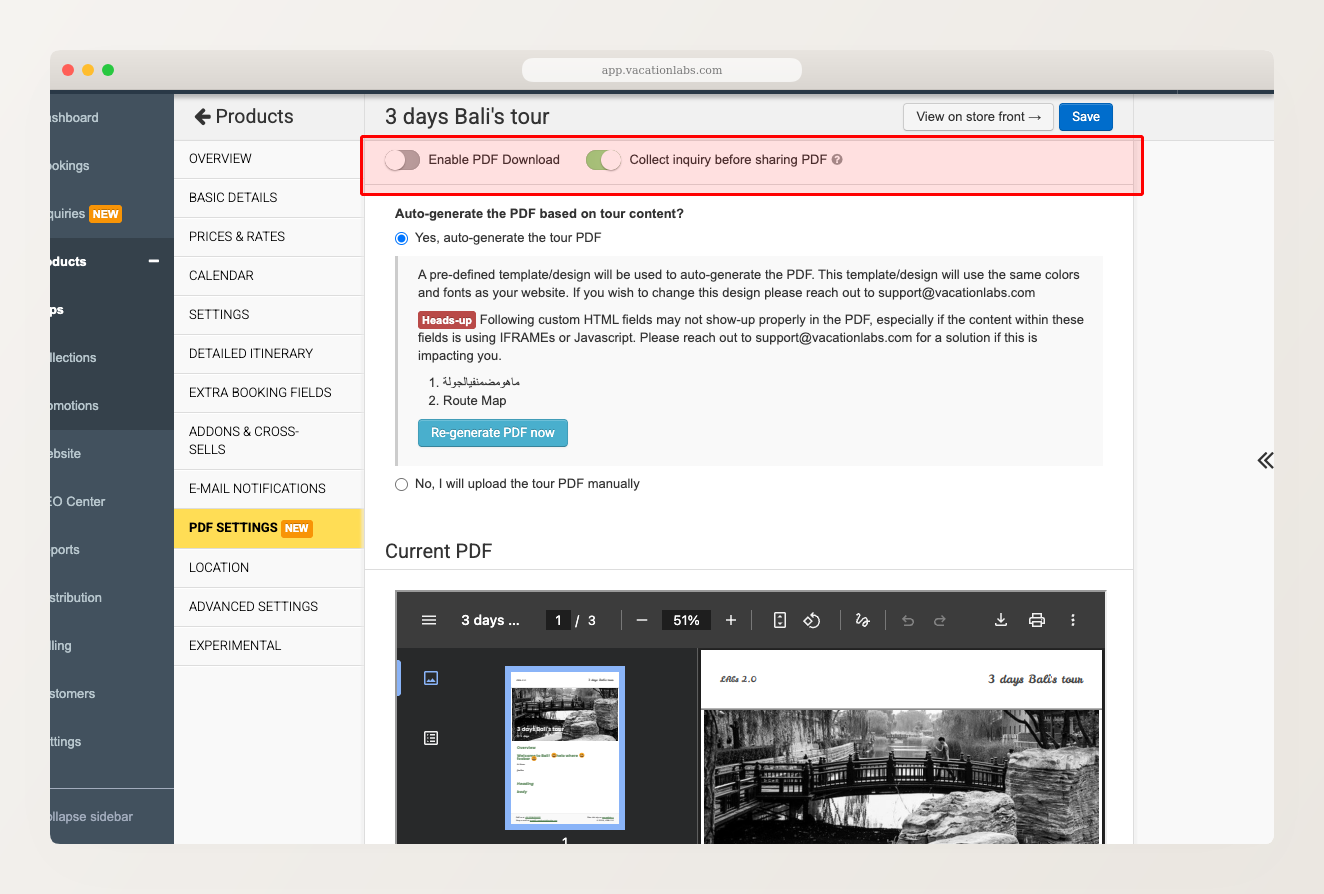
Once enabled, choose how you want to provide the PDF.
Auto-Generating the Tour PDF
Select Yes, auto-generate the tour PDF. The system creates a professionally formatted PDF using your tour content and your website’s theme colors and fonts.
The auto-generated PDF includes:
- Banner image and tour title
- Duration (in whatever format you’ve set — days/nights, hours, etc.)
- Overview, Highlights, Inclusions, and Exclusions
- Detailed itinerary or day-wise itinerary segments (whichever you use)
- Pickup points with Google Maps links
- Automatic route map (if enabled for the tour)
- Custom fields you’ve added to the tour
- Header with your company logo (or company name if no logo is set)
- Footer with your support email, phone number, copyright notice, and tour page link
Sections appear in the same order as your tour page. After saving, the PDF generates within approximately 3 minutes.
Click Preview PDF to view the current auto-generated PDF.
When you update any tour content (overview, itinerary, photos, etc.), the PDF automatically regenerates after a short delay. You don’t need to manually trigger it — just edit your tour and the PDF updates on its own.
Uploading a PDF Manually
If you have a custom-designed brochure, select No, I will upload the tour PDF manually and upload your file.
Uploading a new PDF automatically replaces the previous one. There’s no need to delete the old file first.
Collecting Inquiries Before Download
Enable Collect inquiry before sharing PDF if you want to capture customer details before they can download the brochure. When a customer clicks the Download PDF button, an inquiry form pops up first. The PDF downloads only after they submit the form.
This is useful for lead generation — you get the customer’s contact information in exchange for the tour brochure.
Custom Fields in the PDF
Custom fields you’ve added to a tour are included in the auto-generated PDF. Supported field types:
- Single-line text, multi-line text, and rich text
- Single-select and multi-select pick lists
- Boolean (checkbox) fields
- Number fields (with or without decimal places)
Custom HTML sections that contain third-party embeds (YouTube videos, photo gallery widgets, external iframes) will not render in the PDF. Only standard content and map embeds are supported. A warning about this appears on the PDF Settings page.
Limitations
- Logo visibility: White or light-colored logos may not be visible on the white PDF background. Use a logo with a darker color or transparent background with visible elements.
- Banner image quality: Very high-resolution banner images may appear slightly lower quality in the PDF due to compression.
- Fixed template: The PDF layout and design match your website theme (colors and fonts), but the template structure itself cannot be customized.
- No email attachment: The PDF cannot currently be attached to booking confirmation or inquiry emails — customers download it from the tour page.
Related Articles
- Activating and Setting Up Pop-Up Inquiry Form — configure the inquiry form that appears before PDF download
- How to Create a Day-Wise Itinerary for Your Tours — day-wise itinerary segments that appear in the auto-generated PDF
- Managing Tour Page Sections — control which sections appear on your tour page (and in the PDF)