
Upcoming Departures (Table) Section
Overview
The Upcoming Departures section displays a table of your next available trip departures on any page — your homepage, a destination landing page, or any static page. Visitors see departure dates, duration, tour name, price, availability, and a Book Now button — all pulled automatically from a date-based collection you choose.
This is useful when you want to highlight what’s coming up next across multiple tours, rather than sending visitors to a specific tour page.
Prerequisites
This section pulls data from a date-based collection. You’ll need at least one collection set to the “Date-based table” layout before the section will appear in the dropdown.
If you don’t have one yet, go to Products > Collections, create or edit a collection, and set its page type to Date-based table. See Creating and managing collections for details.
Adding the section
-
Go to Website > Pages and select the page you want to edit (e.g., Homepage).
-
Click Add Section and choose Upcoming Departures (table) from the dropdown.
-
Enable the section using the toggle.
-
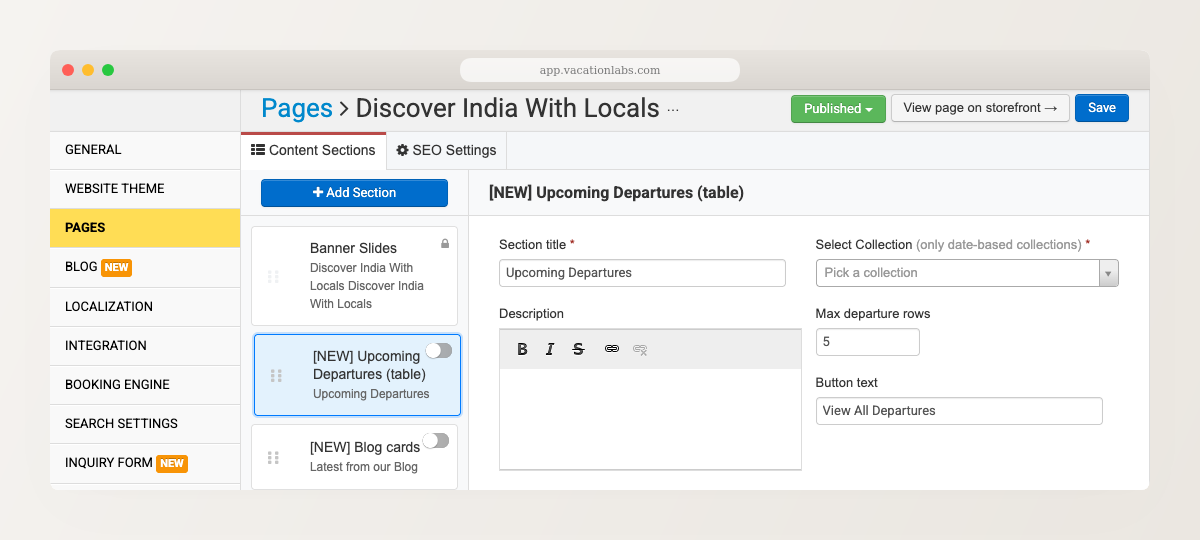
Click on the section to open its settings.
-
Select a date-based collection from the dropdown. Only date-based collections appear here.
-
Configure the settings:
- Heading — custom title displayed above the table
- Description — optional rich-text description below the heading
- Max rows — how many departure rows to show (default: 5)
- Button text — text for the “View All” button that links to the full collection page. Leave empty to hide the button.
-
Click Save.
What visitors see
The section displays a table with columns for departure date, duration, tour name, price, and a Book Now button. Rows are sorted by date (earliest first).
If you have urgency triggers enabled on your account, an Availability column also appears showing how many spots are left.
The section respects your collection’s variant display mode — if your collection is set to show all variants, each variant gets its own row. If set to show only the first variant, only one row per tour appears.
When the section is hidden
The section automatically hides itself (including the heading) when there’s nothing to show:
- No collection selected
- The selected collection has no active tours
- No future departures exist in the collection
You can use the background color and text color settings (in the section’s common settings) to make the departures table stand out on your page.