
How to edit/modify Footer in Vacation Labs
Along with your website header, the website footer is equally important for any website. It allows you to show a brief summary of all your website content in short. Most of the customer prefer website footer as the first place on your website to get your contact details, social media links, etc.
Before you start,
- Please note the website footer is constant throughout the website.
- You can have 4 Column or 2 Row layout style as your website footer design.
- The footer can have 2 types of content i.e Link and Text
This article we’ll show you how to edit the footer area in Vacation Labs, by accessing it in the back office.
Editing/Modifying the Website Footer
To edit/modify the website footer please follow the below steps,
- Click on the Website tab
- Click on Pages
- Click on Homepage
- Scroll down and you will find **Website Footer
**
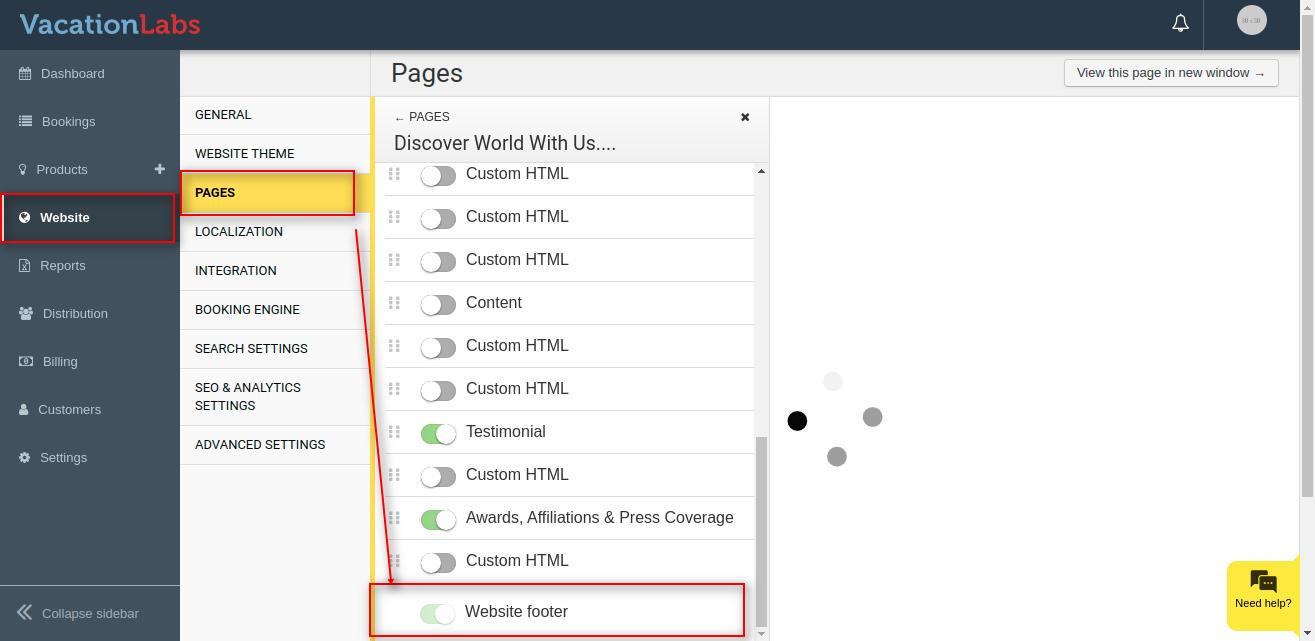
- Choose the column you want to edit.
- Edit the Links/Text as required.
- Click on Save.
Reordering the Column/Rows in Website Footer
If you wish to reorder the website rows/columns please follow the below steps,
- Click on the Website tab
- Click on Pages
- Click on Homepage
- Scroll down and you will find Website Footer
- Click on **Reorder
**
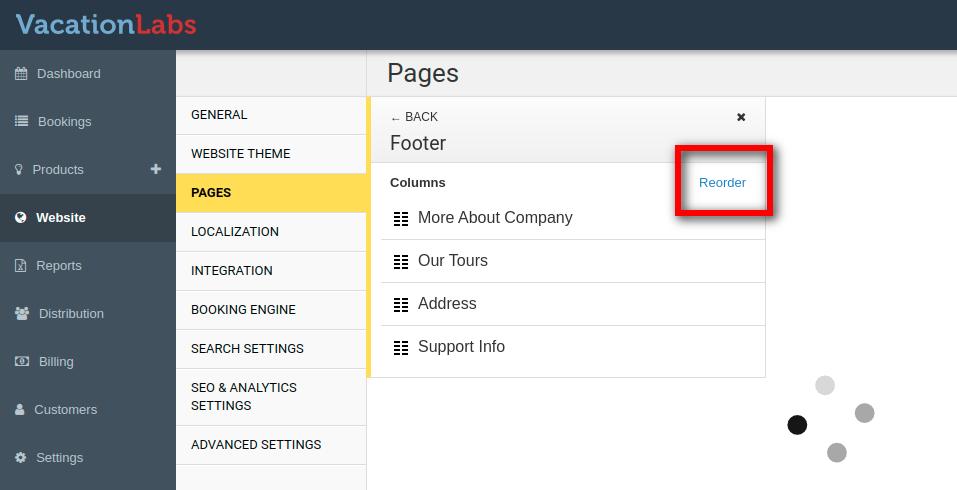
- Simply Drag and Drop the column according to your requirement.
- Click on Save
Type of content in Website Footer
The website footer column/row can either contain Link or Text in it.
Adding a link In Website Footer,
Please follow the below steps to add links to the website footer,
- Click on the Website tab
- Click on Pages
- Click on Homepage
- Scroll down and you will find Website Footer
- Select any Column in which the link needs to be added.
- Select an existing link from the drop-down or add your custom link
- Add a Link title
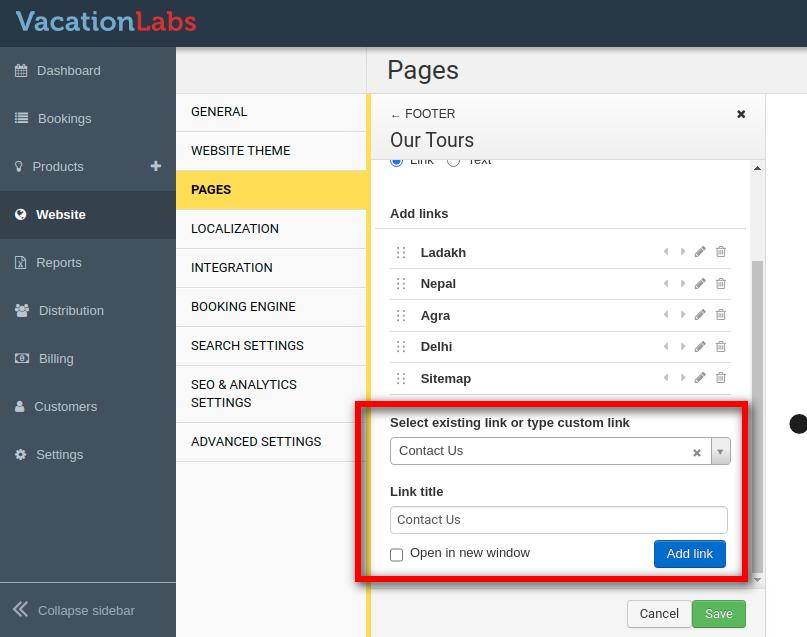
- Click on Save.
Adding a Text in Website Footer,
Please follow the below steps to add text to the website footer,
-
Click on the Website tab
-
Click on Pages
-
Click on Homepage
-
Scroll down and you will find Website Footer
-
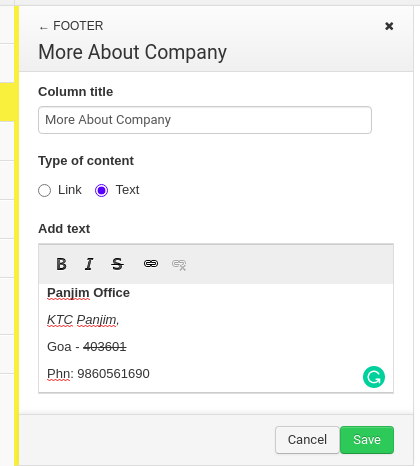
Select any Column in which the text needs to be added.
-
Add the text in the container.
-
Click on Save.
Tip: Additionally the text can also be made Bold, Italic, Strikethrough and you can even link the text to a URL!
What’s next?
Are you planning to customize the Website Footer wrt to the background colour, theme, font style etc? Then we would recommend you to read our article on Customizing Website Theme.