
Creating Inquiries Manually
Overview
Not every lead comes through your website. Customers call you, send WhatsApp messages, email directly, or walk up at a trade show. With manual inquiry creation, you can log all these leads in the same place as your website inquiries — giving you a complete picture of your sales pipeline.
When to use manual inquiries
Create a manual inquiry whenever you receive a lead outside your website:
- Phone calls — a customer calls asking about a tour
- Emails — a direct email inquiry to your team
- WhatsApp or SMS — messages through chat channels
- Trade shows and events — leads collected in person
- Referrals — leads passed along by partners or past customers
This eliminates the need for separate spreadsheets or notebooks and ensures every lead is tracked in one system.
Creating an inquiry
-
Go to Inquiries in the backoffice sidebar.
-
Click the + New inquiry button (green button at the top of the page).
-
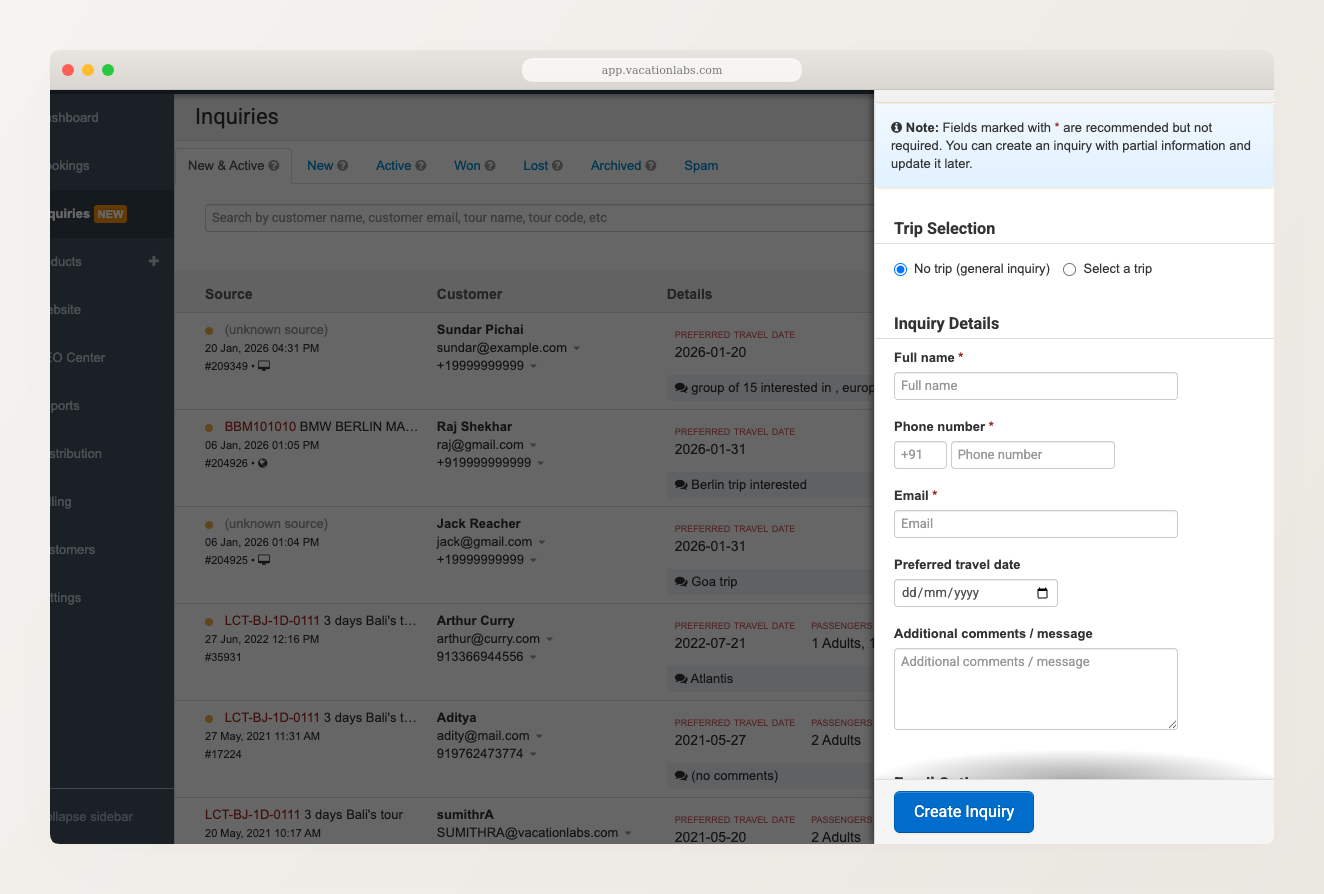
A sidebar panel opens on the right.
-
Under Trip Selection, choose Select a trip and pick the relevant tour — or leave it on No trip (general inquiry) for leads not tied to a specific tour.
-
Fill in the customer’s details — full name, phone number, email, preferred travel date, and any comments.
-
Click Create Inquiry.
The inquiry appears in your inquiry list marked as a “Manual” submission type.
When you select a specific trip, the form fields adapt to that trip’s inquiry form configuration. If the trip has custom fields (e.g., “Preferred hotel category” or “Dietary requirements”), those fields appear in the manual creation form too. When no trip is selected, you get the default fields: name, phone, email, travel date, and comments.
Inquiries without a specific trip
Sometimes a lead doesn’t relate to a specific tour — for example, a general “plan my vacation” request or a corporate inquiry. You can create an inquiry without selecting a trip. In this case, only the default fields (name, email, phone, comments) are shown.
These tripless inquiries appear in your inquiry list with a blank Trip column, so you can still search, assign, and track them like any other inquiry.
After creating an inquiry
Once created, the manual inquiry behaves exactly like a website-submitted inquiry:
- It appears in the New & Active tab
- It shows an orange dot as unread until you view it
- You can change its status, assign it to a team member, and include it in CSV reports
- The customer’s email and phone are clickable for quick contact
Fields marked with * are recommended but not required. You can create an inquiry with partial information and update it later — useful when you only have a phone number from a quick call.
Related Articles
- Managing Inquiries — overview of the inquiry system
- Viewing, Searching, and Managing Inquiry Status — search and organize your inquiries