
Viewing, Searching, and Managing Inquiry Status
Overview
The inquiry list is your central dashboard for all leads. It shows every inquiry submitted through your website forms, manually created by staff, or imported from Meta lead ads — all in one place with search, status tracking, and filtering.
Navigating to the inquiry list
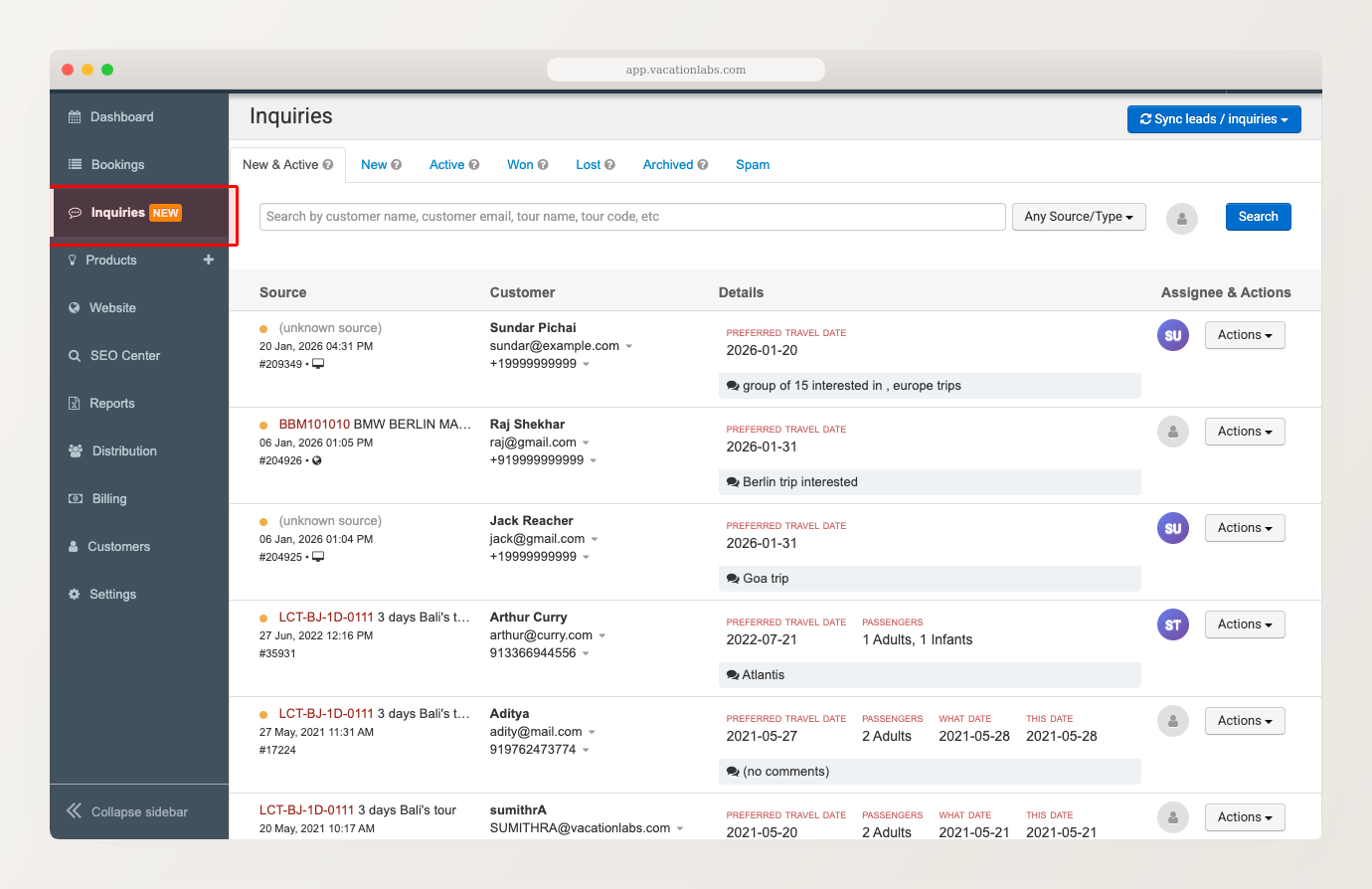
Go to Inquiries in the backoffice sidebar. You’ll see a paginated list of all your inquiries, with the most recent at the top.
Understanding the columns
The inquiry list organizes information into four column groups:
- Source — the trip or page the inquiry came from, the submission date, and the inquiry ID. General inquiries not tied to a specific trip show “(unknown source)”.
- Customer — the visitor’s name, email, and phone number. Email and phone are clickable for quick contact, with copy icons to copy to clipboard.
- Details — submitted fields like preferred travel date, number of passengers, and any comments or notes the visitor included.
- Assignee & Actions — the assigned team member’s avatar (if assigned) and an Actions menu for changing status or editing the inquiry.
The Details column adapts to your form configuration. If your inquiry forms use custom fields, those fields appear here. Forms with many fields may create a wide table — scroll horizontally to see all columns.
New, unread inquiries are marked with an orange dot indicator so you can quickly spot which ones need attention.
Searching and filtering
The search bar at the top performs fuzzy search across customer name, email, tour name, tour code, and other submitted fields. Type any keyword and click Search.
Use the Any Source/Type dropdown to filter by how the inquiry was submitted — for example, showing only Meta lead ads or only manual inquiries.
Search and filtering work within the active status tab. For example, if you’re on the “Won” tab, searching will only return matching inquiries with Won status.
You can search by partial matches. Typing “beach” will find inquiries mentioning “beach tour”, “beachside resort”, etc. You can also search by trip code if you use internal codes for your tours.
The status tabs
Inquiries are organized into seven tabs along the top of the inquiry list:
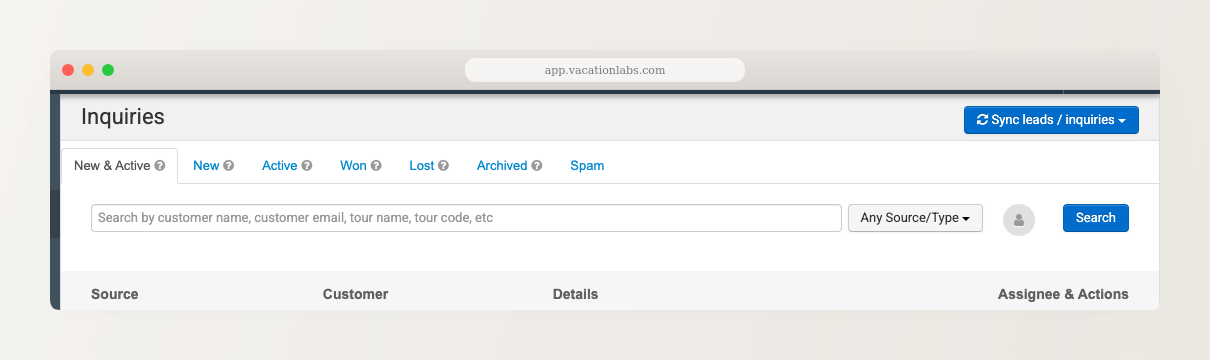
- New & Active — a combined view showing all inquiries that are either New or Active. This is your working queue.
- New — fresh inquiries that haven’t been acted on yet.
- Active — inquiries you’re currently following up on (sending emails, making calls, sharing itineraries).
- Won — inquiries that converted into a booking or sale.
- Lost — inquiries where the customer decided not to book.
- Archived — inquiries you want to keep on record but no longer need to act on.
- Spam — junk or irrelevant submissions.
The count next to each tab shows how many inquiries are in that status.
Changing inquiry status
- Click Actions on the inquiry row.
- Click Change Status.
- Select the new status from the list.
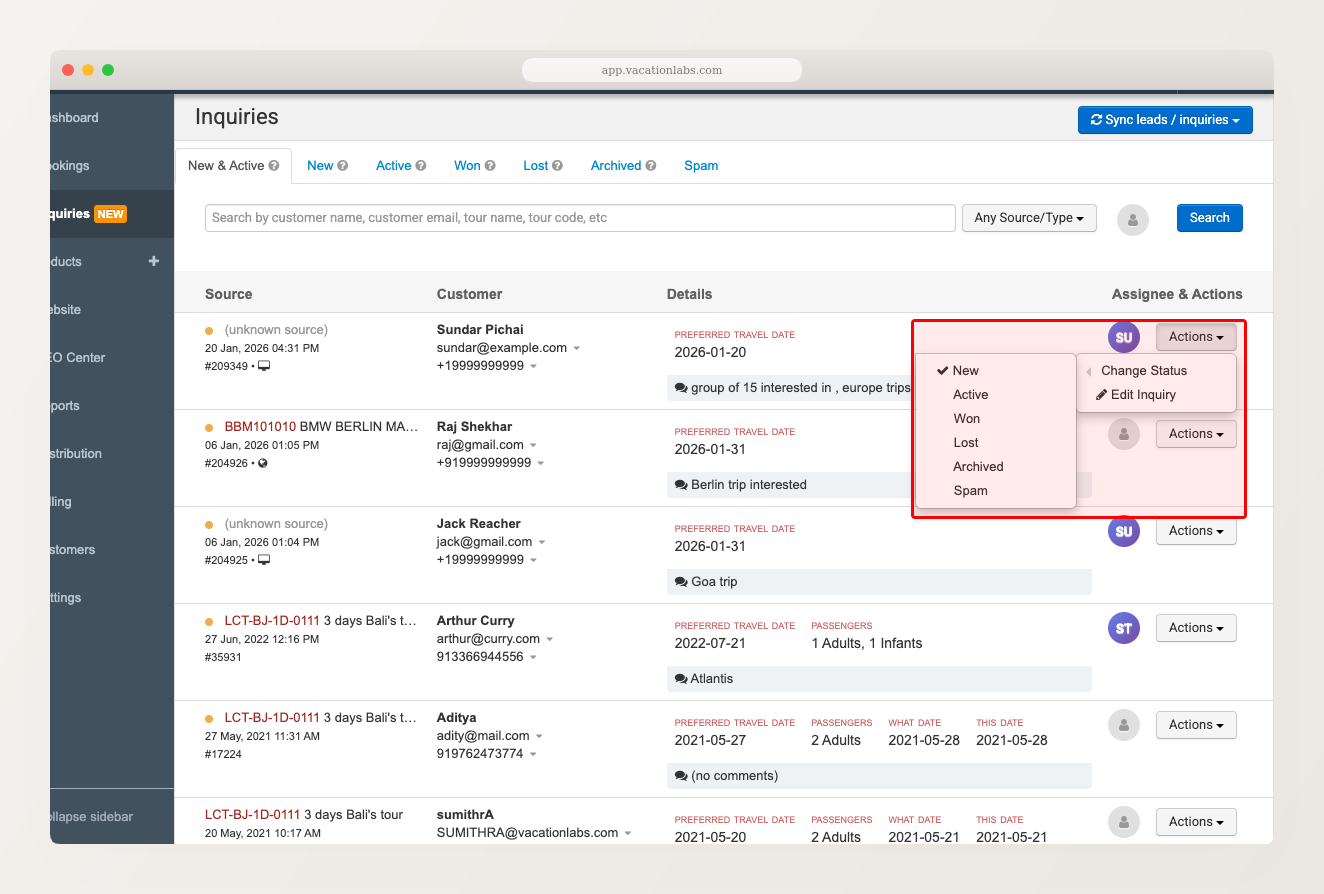
The inquiry immediately moves to the corresponding tab.
When to use each status
Here’s a practical guide for managing your inquiry pipeline:
- New — leave inquiries here when they first arrive. This is your “unprocessed” queue.
- Active — move an inquiry to Active once you start following up — sending emails, making calls, sharing itineraries. This signals to the team that someone is working on it.
- Won — mark as Won when the customer books (even if through a separate channel). This helps you track your conversion rate.
- Lost — mark as Lost when the customer explicitly says no, or when you’ve followed up multiple times with no response. Be honest — Lost inquiries tell you your actual conversion rate.
- Archived — for inquiries resolved without a clear win or loss — repeat customers checking dates, internal test submissions, or inquiries handled outside the system.
- Spam — for bot submissions, irrelevant messages, or clearly fake inquiries. This keeps your counts accurate.
Review your New & Active tab regularly. If an inquiry has been sitting there for weeks with no follow-up, it’s probably Lost — move it there. A clean working queue means nothing falls through the cracks.
Related Articles
- Managing Inquiries — overview of the inquiry system
- Creating Inquiries Manually — add inquiries for offline leads
- Assigning Inquiries to Your Team — distribute leads across your team