
Save and reuse email templates
Overview
When you send the same kind of email again and again — meeting-point directions, a pre-trip checklist, a document request, a post-trip review request — you can save it as a template. A template stores the subject, the message, and any attachments, so next time you pick it from a dropdown instead of retyping everything.
Templates are created and used from the email composer — the panel that opens when you click Send Email on a booking or inquiry.
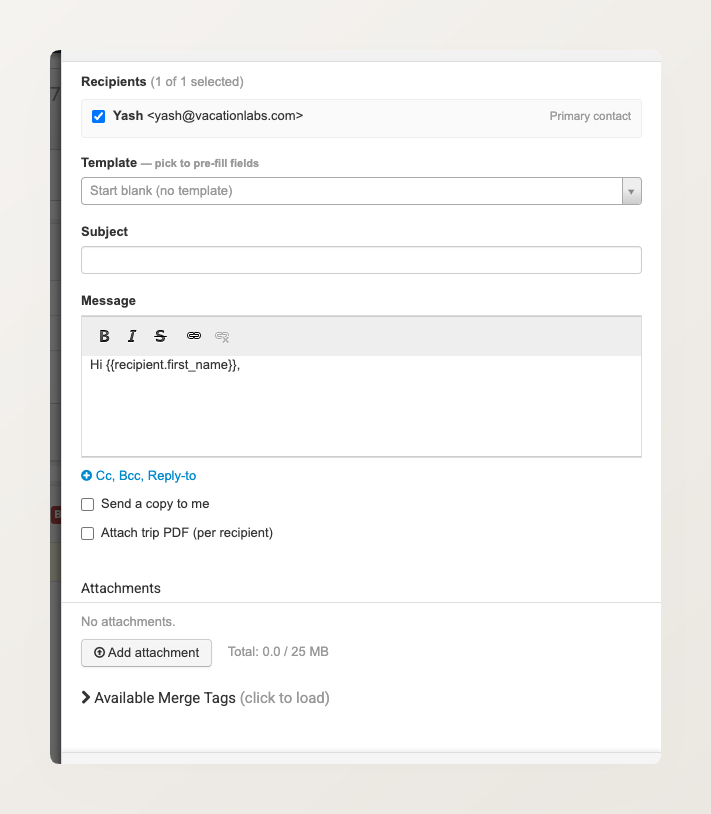
Saving a template
- Open a booking or inquiry and click Send Email.
- Fill in the Subject, Message, and any attachments you want the template to include.
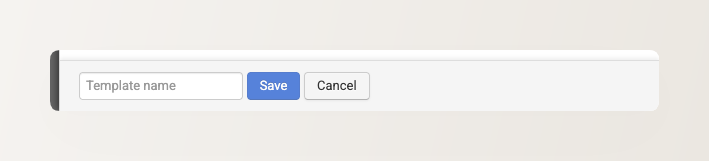
- Click Save as template at the bottom of the panel.
- Enter a name for the template and click Save.
Using a saved template
- Open the composer on a booking or inquiry.
- Open the Template dropdown near the top and pick a template. The subject, message, and attachments fill in automatically.
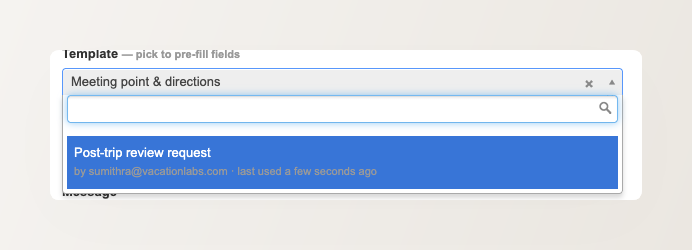
- Adjust anything you like for this particular customer, then send.
Templates are kept separately for bookings and inquiries, so the dropdown on a booking shows your booking templates and the one on an inquiry shows your inquiry templates. The list is ordered by most recently used, so your common templates stay near the top.
Creating a template while setting up an automation rule
When you set up an automated messaging rule with an email action, you can build a new template on the spot with Create new template — no need to open a booking first.
Saved templates are available on the Pro plan and above. If you don’t see the option, contact support@vacationlabs.com.