
WhatsApp Notifications
Overview
You can send WhatsApp messages to your customers in two ways:
- Automatically, when something happens — for example, a WhatsApp message when a booking is confirmed or a payment is requested. These are set up as notification rules.
- To everyone on a departure — send a WhatsApp message to all participants in a specific departure from the departure details page.
Messages are sent as WhatsApp template messages through a WhatsApp provider you connect to your account. A WhatsApp provider is a third-party service that handles the official WhatsApp Business connection on your behalf.
WhatsApp template messages must be pre-approved by Meta before they can be sent. Create and submit your templates for approval in your provider’s dashboard first. Free-form WhatsApp messages are not supported — only approved templates.
Supported WhatsApp providers
You connect one of the following providers. Each requires its own WhatsApp Business account and an active subscription with that provider, where you create and submit your message templates:
- WATI — uses named template variables (e.g.
customer_name,trip_name) - Interakt — uses numbered template variables (e.g.
1,2,3)
Connecting your WhatsApp provider
- Go to Settings → Emails, WhatsApp & SMS and open the WhatsApp tab.
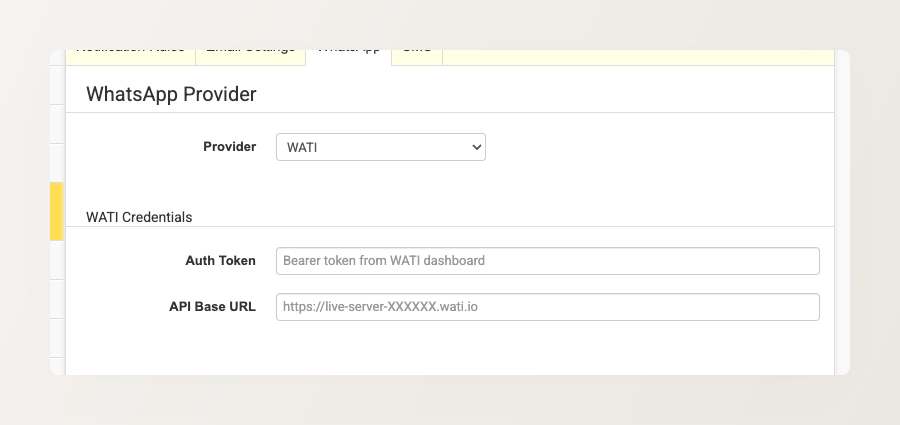
- Select your Provider — WATI or Interakt.
- Enter your credentials:
- WATI: Auth Token and API Base URL (from your WATI dashboard)
- Interakt: API key (from your Interakt dashboard under Settings → Developer)
- Click Save Configuration.
If you switch providers (for example from WATI to Interakt), templates configured for the previous provider are preserved but hidden. Editing a template across a provider switch can cause issues, so set up fresh templates for the new provider rather than editing the old ones.
Sending WhatsApp messages automatically
Automatic WhatsApp messages are set up as notification rules. A rule sends a WhatsApp template when a trigger fires — such as a booking being confirmed, a payment being requested, or a scheduled time before a trip.
- Go to Settings → Emails, WhatsApp & SMS → Notification Rules and click Add Rule.
- Name the rule and choose a trigger (for example, Booking Confirmed).
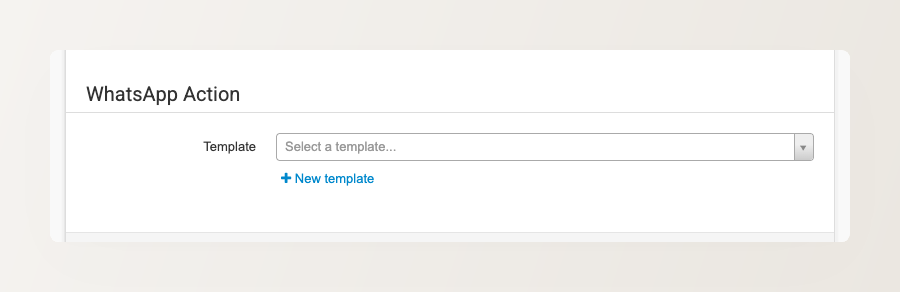
- Under Action, choose Send WhatsApp Message.
- Pick the WhatsApp template to send.
- Set the rule’s status to Active when you’re ready for it to start sending.
Triggers you can use include booking confirmed, pending confirmation, cancelled, or rejected; a payment being requested; an inquiry being submitted; and scheduled pre/post-trip timings. For the full list and details, see Set up automated messaging rules.
Sending WhatsApp to everyone on a departure
You can also send a WhatsApp message (or email) to all the customers on a specific departure — from the departure’s Send Message sidebar. See Send a message to everyone on a departure for the full steps.
Template variables
Your WhatsApp templates can include variables that fill in automatically from the booking — for example the customer name, trip name, departure dates, booking amount, and (for payment messages) the payment link. WATI uses descriptive names like customer_name; Interakt uses numbered placeholders (1, 2, 3), and the order must match the order defined in your template.
Related Articles
- Set up automated messaging rules — trigger WhatsApp and email messages on events
- Send an email from a booking or inquiry
- Adding a Basic WhatsApp widget to the website — a floating WhatsApp chat button (separate from template messaging)