
Email a customer from a booking or inquiry
Overview
You can write and send a one-off email to a customer straight from a booking or an inquiry, without leaving the backoffice or switching to a separate email tool. This is useful for anything that isn’t a standard, automatic email — sending travel documents, answering a question, or following up on a specific booking.
You can send to a single customer, or to many bookings or inquiries at once.
Sending an email from a single booking or inquiry
-
Find the Send Email button. Where it sits depends on the record:
- On a booking, it’s a button at the top of the booking details.
- On an inquiry, open the row’s Actions menu — Send Email appears once you click it.
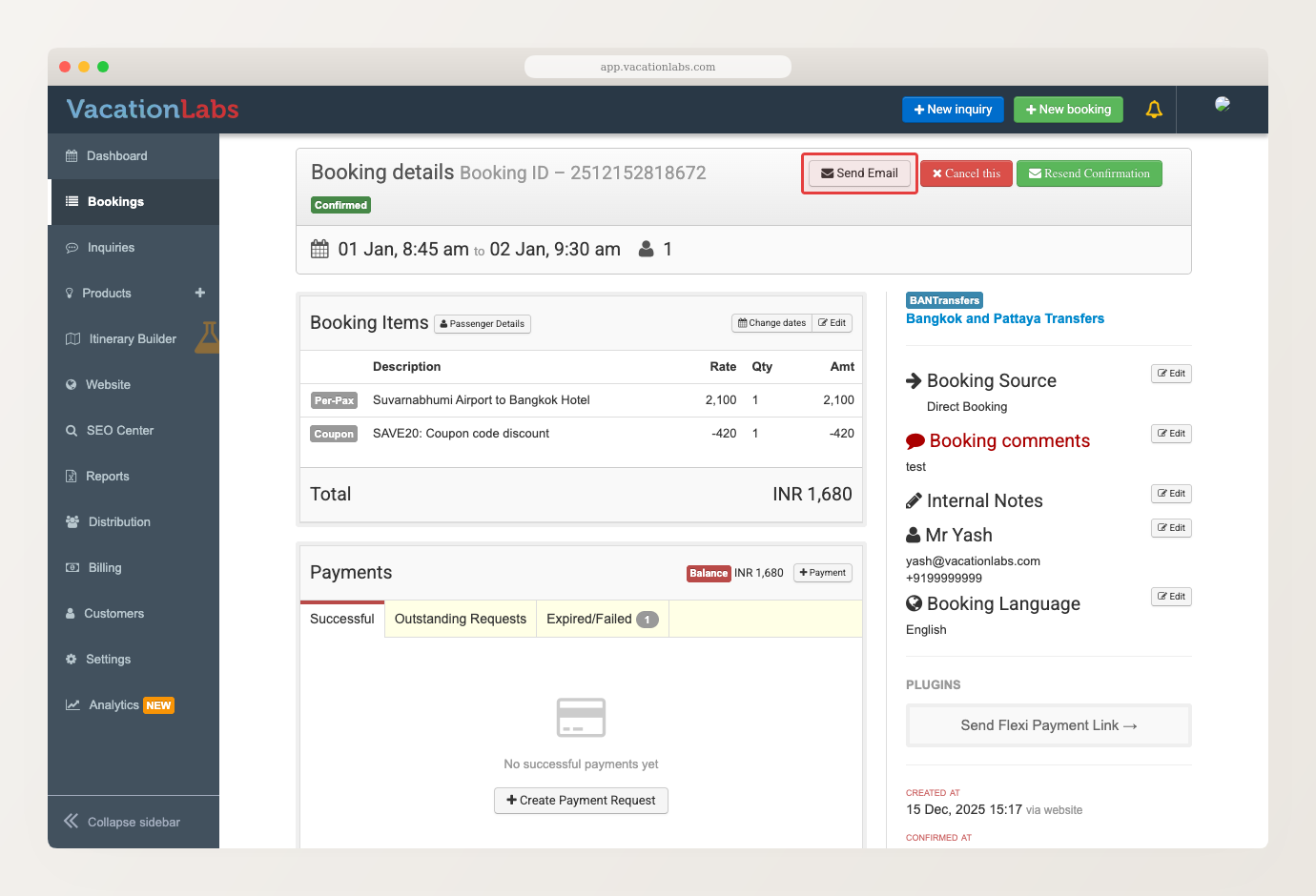
On a booking, Send Email is at the top of the booking details. 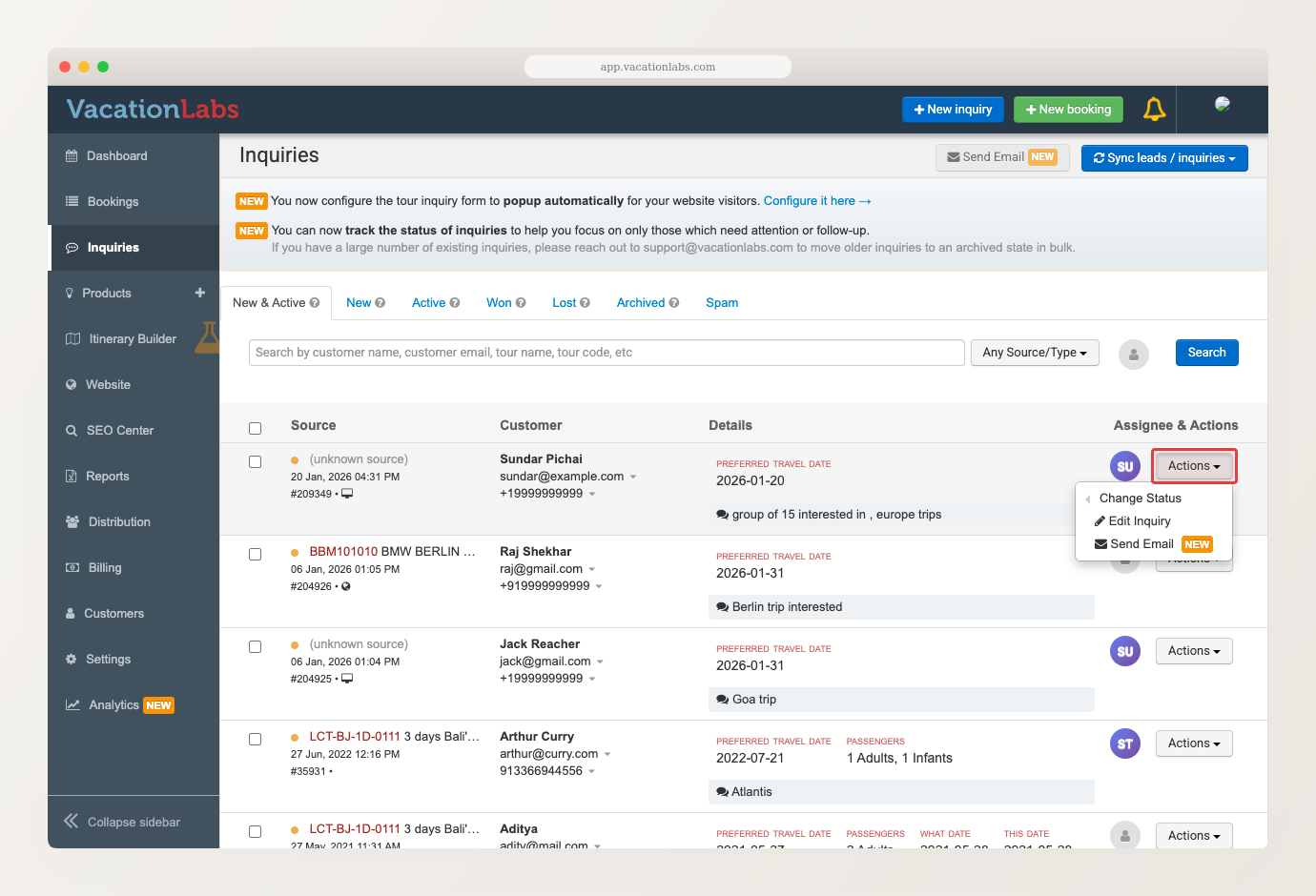
On an inquiry, open the Actions menu -- Send Email is inside. -
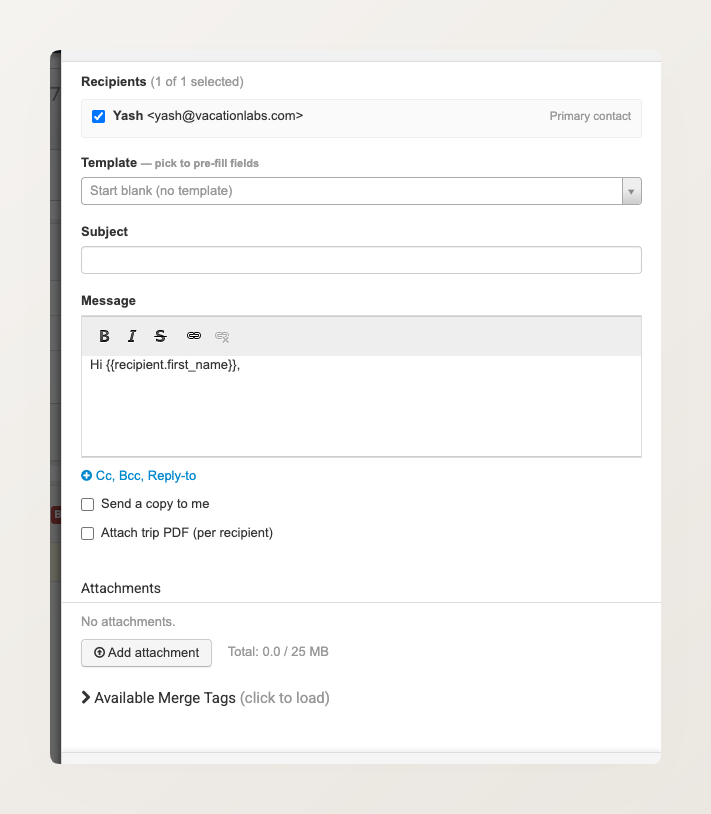
Click Send Email. The composer opens as a panel on the right.
-
Check the recipient at the top. By default the booking’s primary contact is selected.
-
Write a Subject and your Message. The message editor supports bold, italics, and links.
-
Click Send Email.
Personalising with merge fields
Merge fields automatically fill in details like the customer’s name, the trip name, or the departure date when the email is sent — so each customer gets a personalised email even when you send in bulk.
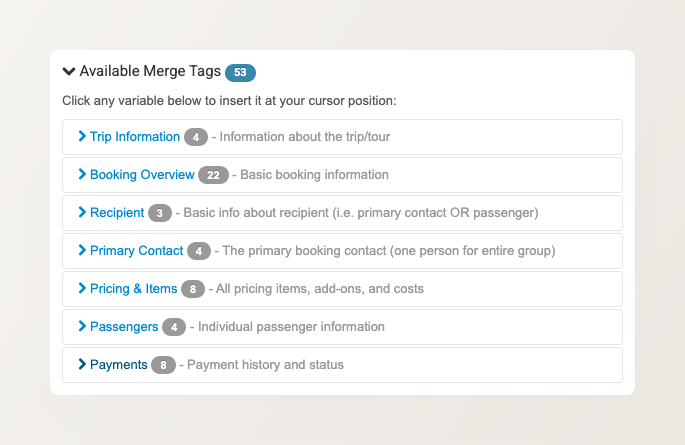
The message starts with a {{recipient.first_name}} merge field already in place. To add more, click Available Merge Tags below the message to see the full list, and copy the ones you need into your subject or message.
Attaching files and the trip PDF
- Add attachment — attach files such as tickets, vouchers, or documents. The combined size of all attachments can be up to 25 MB.
- Attach trip PDF (per recipient) — tick this to include the trip’s PDF e-brochure. Each recipient gets the PDF generated for their own booking.
Use Cc, Bcc, Reply-to (below the message) to copy a colleague or route replies to a specific address, and Send a copy to me to keep a copy in your own inbox.
Test before you send
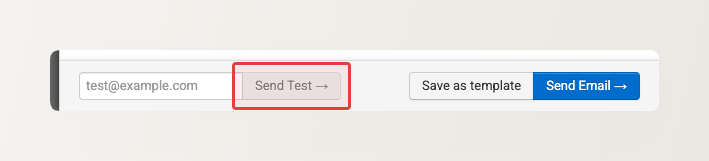
To check how the email looks before it reaches the customer, enter an address in the test field at the bottom of the panel and click Send Test. The test goes only to that address.
Sending to many bookings or inquiries at once
To email the customers of several bookings (or inquiries) in one go:
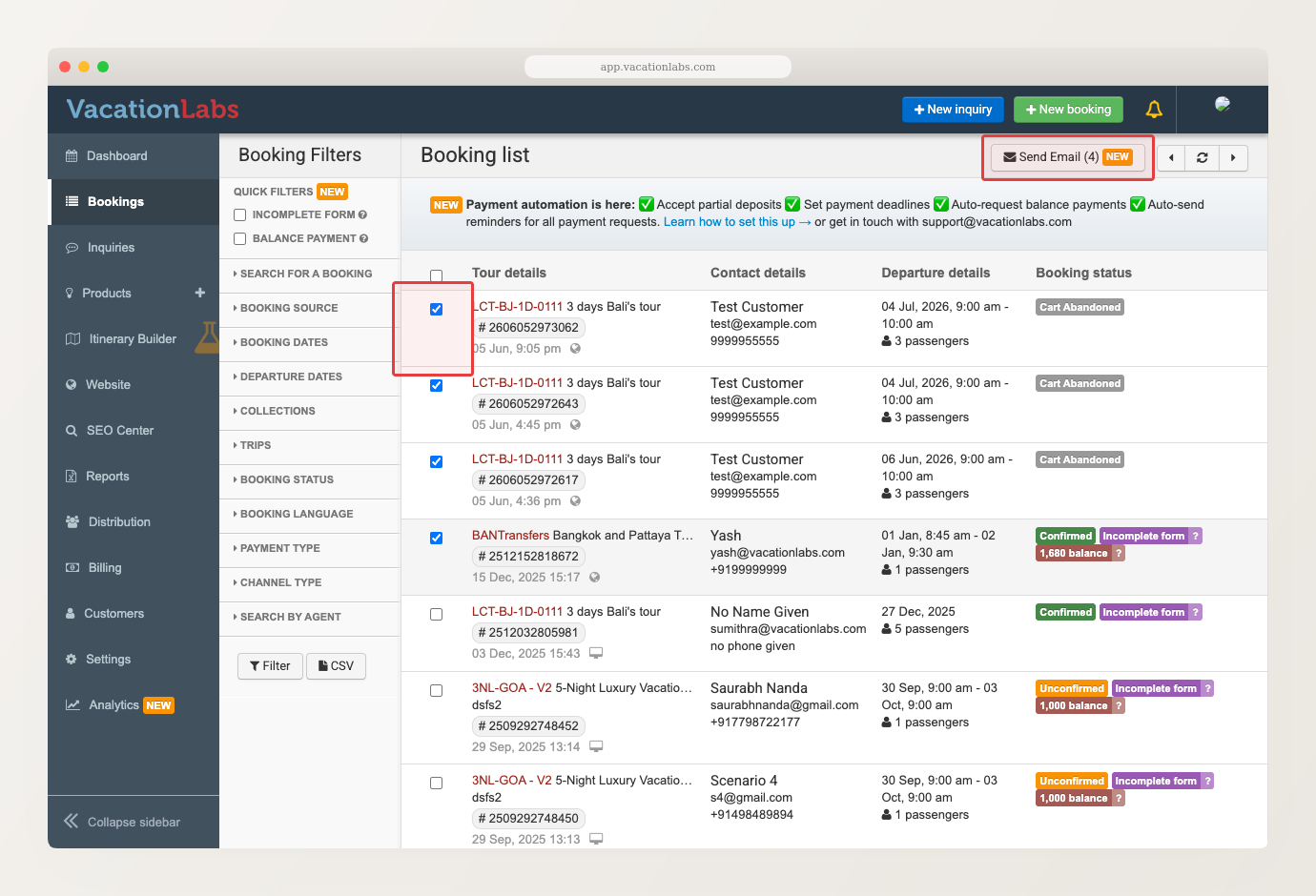
- Go to the booking list or inquiry list.
- Tick the bookings or inquiries you want to email.
- Click Send Email above the list.
- Compose your email as usual. Each email is sent to that record’s primary contact, with merge fields filled in per booking.
On the inquiry side, the ability to send an email is currently tied to the broader Manage Inquiries permission, so a user with inquiry access can also send inquiry emails. A finer-grained permission for inquiry emails is planned.
Save time with templates
If you find yourself sending similar emails repeatedly, save the composer content as a template and reuse it next time. See Save and reuse email templates.