
Inquiry Reports (CSV Export)
Overview
You can download a CSV report of all your inquiries for analysis in Excel, Google Sheets, or any spreadsheet tool. The report includes all submitted fields, inquiry status, submission type, and assignee information.
Downloading the report
-
Go to Reports in the backoffice sidebar, then click Inquiries in the Report Type list.
-
Set your date range using the date pickers, or use a quick link: Last Month, Last Week, This Month, This Week, Yesterday, or Today.
-
Click Download.
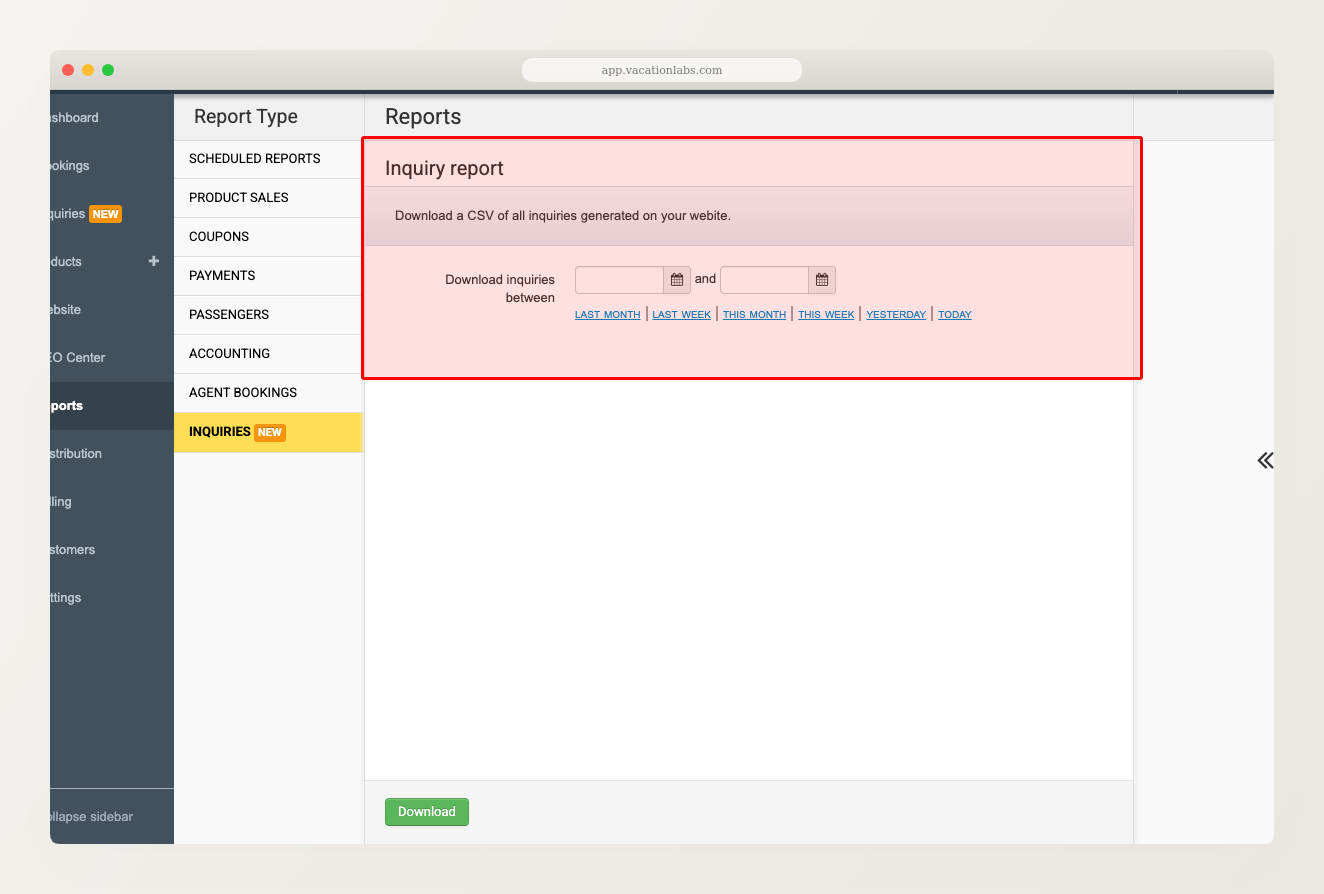
The CSV file downloads directly to your browser.
What’s in the report
The export includes:
- All submitted form fields (name, email, phone, travel dates, pax count, comments, custom fields)
- Inquiry status (New, Active, Won, Lost, Archived, Spam)
- Submission type (Form Submission, PDF Download, Manual, Meta Leads)
- Trip name and trip code
- Assignee (if assigned to a team member)
- Submission date
Phone numbers are formatted as text in the CSV, not as numbers. This prevents Excel from converting long phone numbers into scientific notation (e.g., showing “9.19876E+11” instead of “919876543210”).
Permissions
The inquiry report respects your account’s permission settings. Team members can only download reports if they have the appropriate reporting permissions enabled on their account.
Related Articles
- Managing Inquiries — overview of the inquiry system
- Download Reports — general reports overview