
Setting the Preview Image for Social Media Shares
Overview
When someone shares one of your pages on Facebook, WhatsApp, LinkedIn, X (Twitter), or a similar platform, the share usually appears as a small card: a thumbnail image, a headline, and a short description. That thumbnail is the preview image (sometimes called the Open Graph image, or “Post image”).
By default this thumbnail is filled in automatically — usually from the page’s main banner image — so your links already share with a sensible preview without any setup. The Post image field lets you override that default and choose exactly which image appears. It is worth doing for your most important pages — a flagship tour, a seasonal collection, or your homepage — where you want full control over how the link looks when customers share it.
You set the preview image from the page’s Facebook Post Settings, available on your tour pages, collection pages, and static pages, so each page can have its own.
Setting the preview image
- Open the SEO settings for the page you want to set:
- Tour page: Products → Trips → edit the trip → Advanced Settings
- Collection page: Products → Collections → edit the collection → SEO Settings
- Static page: Website → Pages → select the page → Page Settings
- Find the Facebook Post Settings section.
- Under Post image, click Add Images and upload an image, or pick one from your media library.
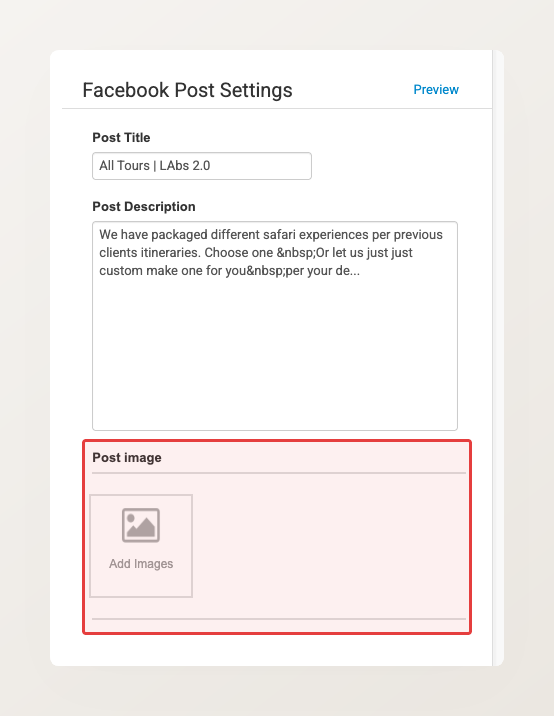
- Optionally set a Post Title and Post Description — these are the headline and text shown next to the image in the share card.
- Click Save.
Social platforms display the preview best when the image is a wide, landscape shape (around 1200 x 630 pixels). A tall or very small image can be cropped awkwardly or skipped altogether.
If a shared link shows the wrong image, or an old one
Social platforms cache the preview the first time a link is shared, and keep showing that cached version for a while. So if you set or change a Post image, an already-shared link can keep showing the old preview until the platform fetches the page again.
To force a refresh:
- Open the Facebook Sharing Debugger, paste the page’s full URL, and click Scrape Again. This refreshes the preview Facebook and Instagram use, and WhatsApp picks up the same refreshed image.
- For LinkedIn, use the LinkedIn Post Inspector the same way.
- X (Twitter) reads the same page, so sharing the link again after a refresh shows the updated image.
A re-scrape only updates what the platform shows for links shared from then on. A message someone already sent keeps its old preview — there is no way to change a preview that has already been delivered.