Technical • June 28, 2026 • Saurabh Nanda
In my last post about AI-generated support articles, I mentioned a side-quest in footnote 7: wiring up Playwright[1] to take automated screenshots for the AI workflow. That footnote barely scratched a much longer story. The trap was thinking “just ask AI” would handle screenshot automation — but we ended up with six attempts, each a different bet on what should be code and what should be the AI’s call, before it worked. This is that story.
Every time we ship a new feature, update our support pages, draft a blog post, or put together an email campaign or a WhatsApp broadcast — we need the right screenshot for the given context.
Once we had figured out how to get AI to generate the prose for our content pieces, we naively assumed that it should be able to figure out the accompanying screenshots, given access to Playwright.
And we really didn’t want to spend time on these screenshots ourselves. Every time we needed one, the workflow was the same: navigate to the right page, set up the right data, resize the viewport, wait for content to load, screenshot, crop to the relevant section, maybe add annotations, save it, upload it, place it in the article/blog/email. But it’s not a single pass — after setting up the browser/mobile and taking the screenshot you feel it’s too wide, not readable, too cluttered, and want to take it again. The entire cycle starts over. At 5-10 minutes per attempt, every content cycle includes a day of mindless clicking nobody wants to do.
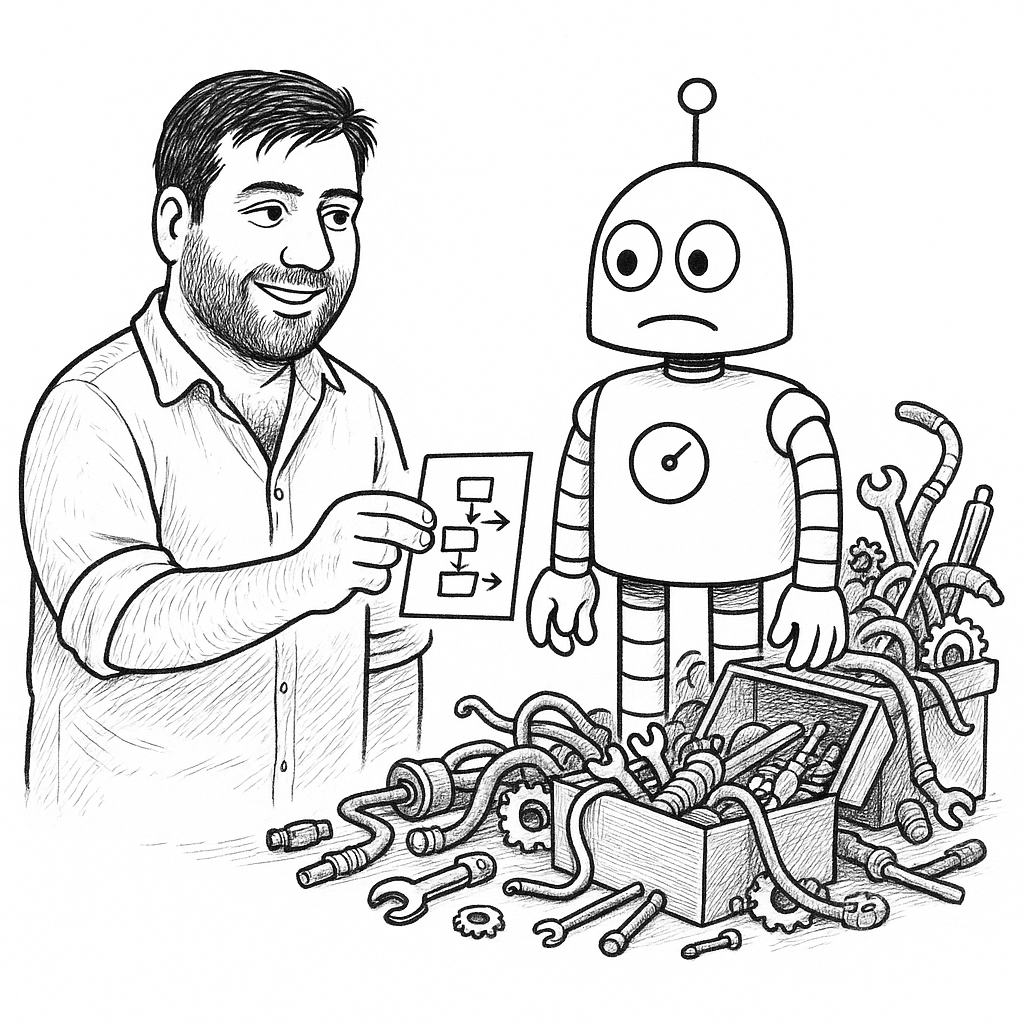
A perfect task to hand off to an “artificial intelligence”.
The initial thought was: this is simple. We need to visit a URL. Take a screenshot. Maybe crop it. AI should be able to get this done.
We tried running playwright-cli commands directly in the main Claude Code conversation. Visit a URL, take a screenshot, crop it — it should have been straightforward. But every playwright-cli command tried to “describe” the page back to Claude in a large, machine-readable text/YAML format — an “accessibility tree”: a text list of every element on the page, its role, and its position — that consumed the conversation’s context window. This increasingly left less room for the actual content we were trying to draft.
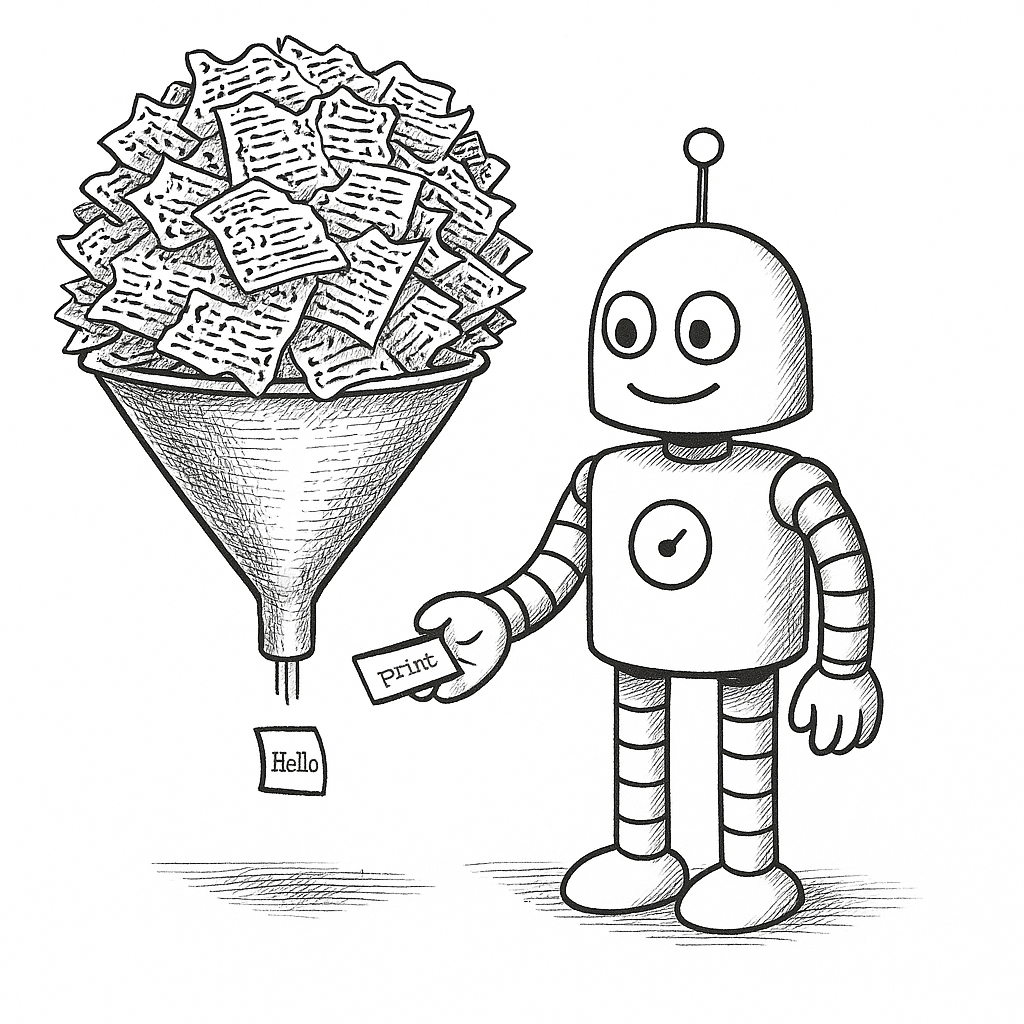
Even if Claude tried to be clever by reading only targeted subsets of that massive text/YAML format, it was never sure how to target it, or what precise slice to read. Without reading the entire output it couldn’t guess which slice was important for the current step at hand. And once it read the entire output, it didn’t have enough room left to do the follow-up steps.
Technical detail: every Playwright operation (goto, click, snapshot) generates a YAML accessibility tree of the current page — 3-60KB each. Short of taking programmatic screenshots of every interaction and running them through a visual model (also not cheap), it was the only way for the AI to discover and understand what was happening on the page.
With the main conversation choking on context, we moved the screenshot work to a separate sub-agent, so the main conversation could stay focused on content while the sub-agent drove the browser. But driving the browser meant reading files: to interact with a page at all — find an element by its text, click it, read its position — Claude had to write little throwaway JavaScript snippets, because the accessibility tree could describe a page but gave no reliable way to act on it. And every time the sub-agent read one of those snippets, the security model stopped and asked for permission — defeating the whole point of an autonomous agent.
Technical detail: the sub-agent used inline shell commands ($(cat helper.js)) to read JS files and pipe them to playwright-cli eval. Claude Code’s security model prompted for confirmation on every $(cat ...) invocation, interrupting an autonomous workflow that was supposed to run without hand-holding.
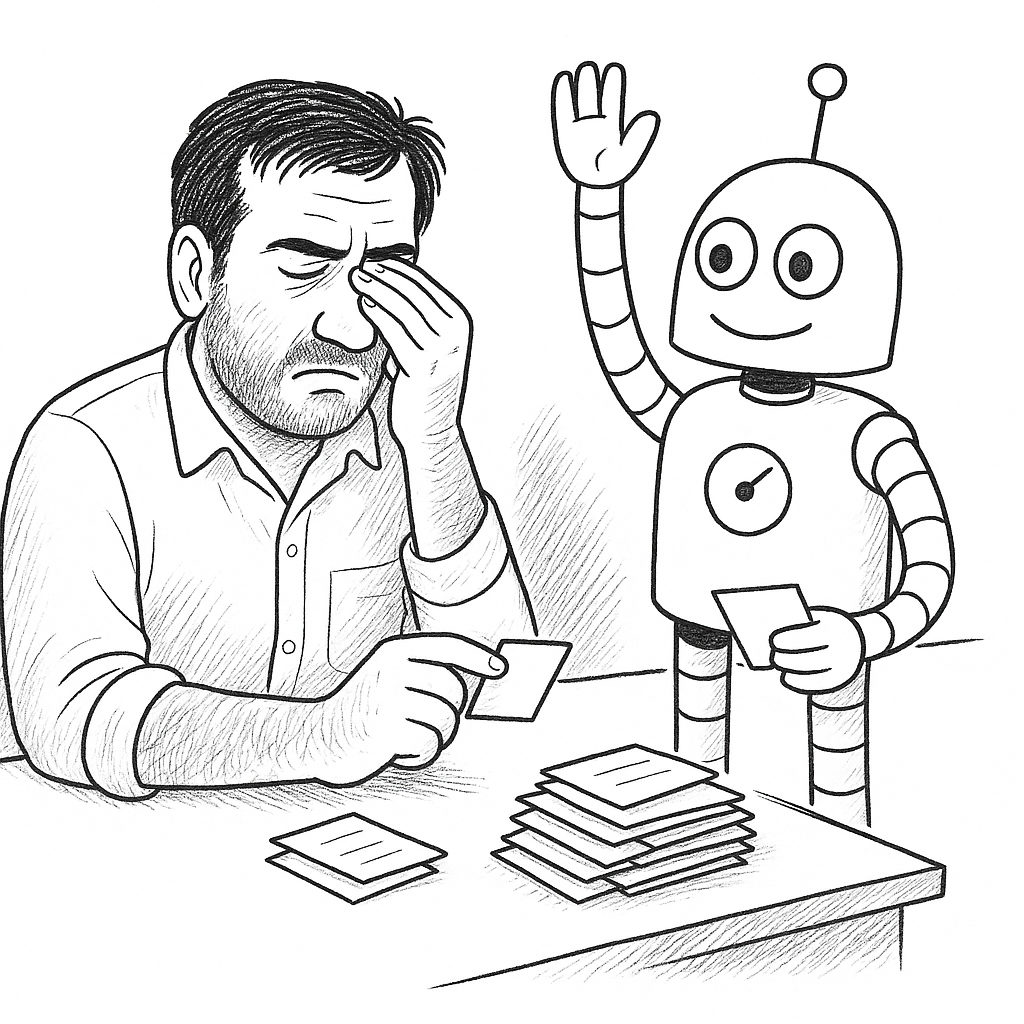
Every file read triggered a permission prompt, so we moved the code into shell scripts that the sub-agent could call as named commands. Each script wrapped one operation — pw-goto.sh, pw-click.sh, pw-screenshot.sh (and 7 more where those came from) — and the sub-agent called them directly instead of cat-ing JS files inline. This solved the permission prompts but created a new problem: each new capability required another script, and we kept discovering things that needed handling. What started as 3 scripts grew to 10 shell scripts and 8 JS helpers, plus a couple of post-processing tools.
Shell: pw-goto.sh, pw-screenshot.sh, pw-click.sh, pw-highlight.sh, pw-login.sh, pw-eval.sh, pw-dom-around.sh, pw-scroll-to.sh, pw-bounding-rect.sh, pw-decode-result.sh. JS helpers: cleanup-css.js, wait-for-network.js, click.js, highlight.js, scroll-to-text.js, dom-around.js, bounding-rect.js, clickables.js. Post-processing (Docker): grid-overlay.mjs, process-screenshot.mjs.
“Visit a URL, take a screenshot, maybe crop it” — 3 simple operations that the AI should have been able to figure out — exploded into 18 files. Most were mundane plumbing: login detection and retry (pw-login.sh), a shared decoder to unwrap machine-framed tool output (pw-decode-result.sh), pixel math for highlights (bounding-rect.js, highlight.js). A handful were not.
Knowing what a click did. Clicking a button silently changed the page, and we needed to see what changed without re-reading the whole thing — so pw-click.sh diffed the accessibility tree before and after the click and reported only the delta.
Seeing what was clickable at all. This one ran deeper. The accessibility tree had a second problem beyond its size — coverage. Our backoffice was never built with accessibility in mind: a clickable row is a bare <tr ng-click>, and most controls are plain elements wired to Angular directives, with no accessibility role or label to mark them as interactive. The accessibility tree is assembled from exactly those annotations — so it could not see what a human could click or hover in our admin. Playwright’s accessibility-based targeting was flying blind. So clickables.js read the real DOM instead — the ng-click and ui-sref attributes on the elements themselves — and surfaced what was genuinely clickable in a few hundred bytes.
clickables on a dense backoffice list — the whole row is a single click target, every column collapsed into a pipe-separated blob (customer details redacted):
TABLE table.table-full-width-listing#booking-list
TR[1] "| LCT-BJ-1D-0111 3 days Bali's tour | # 2606052973062 | 05 Jun, 9:05 pm | | [name] | [email] | [phone]"  (whole row clickable: tr[ng-click])
TR[2] "| BAN Bangkok and Pattaya Transfers | # 2512152818672 | 15 Dec 2025 | | [name] | [email] | [phone]"  (whole row clickable: tr[ng-click])
...
a.link_with_hash[href="/admin/itineraries#/bookings"] "Bookings"
label.control-label[ng-click] "SEARCH FOR A BOOKING"  (click, not navigate)
Cropping. The AI kept guessing pixel coordinates from its vision model and getting them wrong, so we built a grid overlay tool (grid-overlay.mjs) that drew coordinate lines at 50px intervals on the raw screenshot. The idea was: take the shot, overlay the grid, have the AI read the pixel coordinates from the grid labels and crop precisely. But vision models downscale anything high-resolution — and a Retina screen capture is high-resolution. The grid labels between the 50px lines blurred out at the downscaled size, and the AI ended up guessing pixel positions anyway.
The sheer number of files was the real story. Every one represented something that “just visiting a URL and taking a screenshot” didn’t cover.
Running 18 separate files was unwieldy. Every operation needed its own argument parsing, its own error handling. Shell scripts handle special characters poorly — quotes, dollar signs, and backslashes in selectors broke in unpredictable ways. We consolidated everything into a single Node.js CLI to get proper control flow and error handling.
Technical detail: pw.mjs (the unified Node.js CLI) was about 850 lines. Instead of calling playwright-cli as a subprocess and parsing its text output, it connected directly to the browser via Chrome DevTools Protocol (chromium.connectOverCDP()) — so we got native return values, real exceptions, and proper control flow instead of guessing failure from an exit code or an empty selector match. Unified flags replaced each script’s bespoke argument parsing, native JSON output replaced the sed+python3 chains, and Playwright’s native DOM API replaced our jQuery dependency. Even the scattered post-processing folded in — highlight drawing and device-frame handling moved into the same pipeline, retiring the separate highlight scripts and the Docker beautification step.
It also closed the cropping loop from Attempt 3. First, dom-around walked the DOM around a target and returned its ancestors with their pixel rectangles, so you could pick the exact container to crop to. Then, because pw.mjs talked to the live DOM, it measured that element’s rectangle and cropped to it in one pass — no more overlaying grids and reading coordinates off a downscaled screenshot. That solved how to crop precisely; what to crop — a tight detail or the whole screen — stayed a judgement call we come back to in Attempt 6.
dom-around on a booking reference — the element plus its ancestors, each with pixel coordinates, so the AI could pick the right container to crop to:
MATCH: span.booking-ref.ng-binding (445,275 119x22) "# 2606052973062"

PARENT[1]: div.booking-ref-container (445,273 234x26)
  span.booking-ref.ng-binding "# 2606052973062"

PARENT[2]: td.tour-details (437,247 250x80)
  div.booking-trip "LCT-BJ-1D-0111 3 days Bali's tour"
  div.booking-ref-container "# 2606052973062"
  div.booking-meta.muted "05 Jun, 9:05 pm"
The AI merged the 18 files into one tool in under an hour, with consistent error handling and unified flags.
But the consolidation only fixed the code structure — it didn’t fix the assumptions.
Using the attempt 4 solution at real volume revealed problems that never showed up in testing. Each fix was small in code but meaningful in reliability.
Fix for popups. Popups had been a problem since the very first attempt. The AI’s instinct was worse than useless — take a screenshot, detect a popup covering the content, try to close it, take another screenshot, detect another popup (or chat bubble), try again, and so on. Each cycle wasted time and tokens for something that a human figures out in one click. It took us a few attempts to divide the problem into two buckets:
--keep-app-modals flag detected them by their role and shape).
Fix for session clashes. Two parallel Claude sessions — one drafting a support article, another writing release notes — clobbered each other’s browser state.
Technical detail: we keyed the browser connection file to CLAUDE_CODE_SESSION_ID, giving each conversation its own browser instance. Browser close/open were made idempotent — running them when already closed/open was a no-op, and open recovered from a stale connection.
Fix for data leakage. Test accounts leaked client data into screenshots that needed redaction.
Technical detail: --blur scrubbed test-account output before screenshots were sent to the AI for analysis.
The code was solid now — but the screenshots still weren’t right.
Once the tooling stabilized, and it was no longer going in circles about what to click, or fighting popups, we thought the hard parts were behind us. But they weren’t. The screenshots still came out wrong, and it took us a while to figure out why.
After we ran out of all “prompt engineering” takes on our Claude skill, we realized three things were broken — and none of them was a code or tooling problem:
No amount of code or tools would save us from this fundamental workflow disconnect.
So the fix wasn’t more code — it was structuring our workflows differently. We split the tool into two layers that could evolve independently:
/screenshotting) held Vacation Labs-specific patterns: login handling, backoffice-specific navigation patterns, etc.This allowed us to think about tooling separately from workflows/judgements specific to our use-case. Here’s the kind of stuff we ultimately added in the screenshotting skill specific to the Vacation Labs platform:
Register — what is the shot for?
Screenshot kind — pick ONE per shot. The kind sets viewport + crop + frame + highlight together; don’t mix and match.
| Kind | Use for | Viewport | Crop | Frame | Highlight |
|---|---|---|---|---|---|
| Backoffice — detail | one control/setting/section | desktop 1280×800 | tight/medium: crop-to the section | no-frame | box the control |
| Backoffice — full | orient to the whole admin screen | desktop 1280×800 | full viewport | browser-chrome | usually none |
| Storefront — customer-facing | what the customer sees | mobile 412×869 | full mobile viewport | device-frame | box the relevant area |
| Storefront — wide/context | desktop storefront layout | desktop 1280×900 | full viewport | browser-chrome | optional |
| Composite piece | one image combining shots (phone + browser) | per piece | per piece | no-decor | per piece, then composite |
The LLM doesn’t guess these. It looks them up.
The AI never proposed this split. It wrote good code within whatever container we gave it, but it never said “this architecture is wrong.” That call was human.
None of this should read as “AI was useless.” It wasn’t. The AI wrote all 18 scripts in Attempt 3 in a single session — correct, working code. It consolidated them into pw.mjs in under an hour with consistent error handling across every function. It implemented the reliability fixes in Attempt 5 when we described the failure modes. Each time we said “add X” or “fix Y,” it produced solid code in seconds.
The coding speed was real. What would have taken days of manual development took hours of back-and-forth. The AI was a fast, tireless implementer — once we knew what needed to be built.
But it never told us what to build.
AI can seem like magic. But like any good magic trick, the magician needs to practice. A lot. Or the magic misfires. It looks like the AI figures things out on its own, until you’re dealing with org-level or business-specific workflows — then you realize the practice is the whole game.
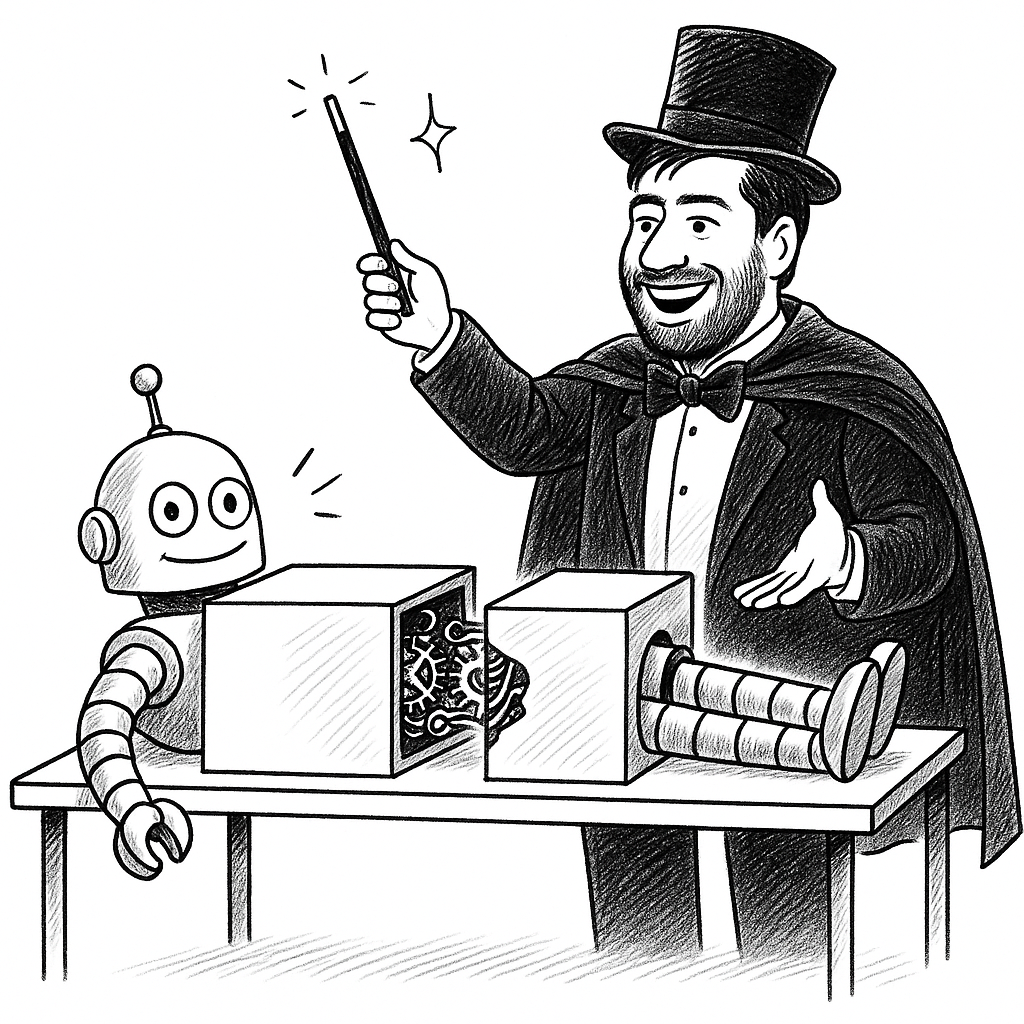
AI output looks plausibly correct at a glance. As soon as you look even a little deeper, you realize a lot is missing or wrong. Vision models, especially, are not great at precise stuff — in our case, figuring out exact rectangle coordinates to take a tight screenshot. In other contexts, we’ve seen them struggle to notice small variations between margin/padding of a design mockup and the final implementation in the browser. The fix was measureRect() — get bounding coordinates from the live DOM, not from the LLM’s compressed image.
Every one of our six attempts produced working code. None of them produced a working system.
Shell scripts in agentic workflows are tech debt that will come back and bite you. LLMs love writing quick shell scripts, but they break easily on quotes, newlines, dollar symbols, backticks. We had 10 shell scripts and 8 JS helpers before we consolidated into a single Node CLI — not because we architect-ed it that way, but because we kept discovering edge cases that shell scripts couldn’t handle. If you’re building an agentic workflow, reach for Node.js or Ruby or Python for anything that’s going to be called repeatedly.
Building a repeatable agentic workflow requires the human to think a lot. You have to understand the workflow at a fundamental level and break it into very fine-grained “deterministic” steps and “judgement” steps (or “content generation” steps).
Do not make the LLM do deterministic steps. At best you’ll waste tokens. At worst, it’ll sometimes get an obvious thing wrong — LLMs are non-deterministic by nature. Use the AI to scope out the deterministic steps and write code for them quickly in an iterative conversation. The final output should be a piece of code/script that the AI calls during the actual workflow.
A concrete example. Here’s how popup handling changed from the skill’s first version to its last:
| Before — an instruction we gave the AI | After — a tool the AI just calls |
|---|---|
| “If a popup or notification appears, dismiss it before taking the screenshot — unless it’s a modal you were expecting to see (a picker, a form you just opened), in which case leave it alone. Some UI elements (dropdowns, tooltips) may close during capture, so avoid including them. Re-apply the cleanup CSS after navigation if it stops working.”
Every run, the AI had to notice the popup, decide whether it was noise or something you’d meant to open, and clear it by hand — and sometimes it just didn’t. |
pw.mjs screenshot
That’s the whole thing. Clearing the noise — cookie banners, chat widgets, select2 masks, backdrops — is now the tool’s default, in code that runs every time. The AI only adds |
The same pattern repeated across the pipeline: login, navigation, crop, highlight — every deterministic operation got extracted into code the AI calls instead of guesses at.
Do not assume the LLM will judge perfectly on its own. You have to give it a rubric — otherwise it makes calls you’ll constantly fight. The screenshot rubric back in Attempt 6 is exactly that: the LLM doesn’t guess the register, the kind, the viewport, or the crop — it looks them up.
The hardest step was deciding what to screenshot. The implicit act of looking at the UI before writing a support article or release note, and deciding what to screenshot and highlight — that’s a critical workflow step that we, as humans, take for granted. It was only by the 5th or 6th attempt that we realized our agentic workflow was missing it.
After six attempts to get a reasonably working AI workflow, we still aren’t done. There’s still the problem of setting up the data — getting a page, booking, or account into a state that actually demonstrates what the screenshot (and surrounding content) wants to show. This still requires a lot of manual steering. That’s attempt number seven — and I’m sure it won’t be the last.
