
Blog Categories, Settings, and Storefront
Overview
Beyond writing posts, your blog has three areas to configure: Categories for organizing content, Settings for controlling layout and behavior, and the storefront where visitors actually read your blog. All managed from Website > Blog.
Managing categories
Categories help visitors find posts by topic. They also generate their own listing pages (e.g., /blog/category/adventure-travel).
Creating and editing
- Go to Website > Blog > Categories.
- Click + Add Category, enter a name, and save.
- To edit, click the Edit button on the category row. The change reflects everywhere — listing pages, post pages, and blog cards.
Reordering
Drag categories using the handle on the left side of each row. The order persists and controls how categories appear in the sidebar on your blog listing pages.
Editing category URLs
Each category has an editable URL slug. If you change it, a 301 redirect is automatically created from the old URL to the new one, so existing links and search engine rankings are preserved.
You cannot delete a category that has posts assigned to it. Reassign or remove those posts from the category first.
How to structure categories for a tour operator blog
Think about what your customers search for and how they browse:
- By destination — “Rajasthan”, “Kerala”, “Ladakh” — works well if you operate in multiple regions
- By travel style — “Adventure”, “Family”, “Luxury” — helps visitors self-select
- By content type — “Travel Tips”, “Destination Guides”, “Trip Reports” — useful if you publish varied content
Start with 3-5 categories. You can always add more later, but too many categories with only 1-2 posts each makes your blog look sparse.
Blog settings
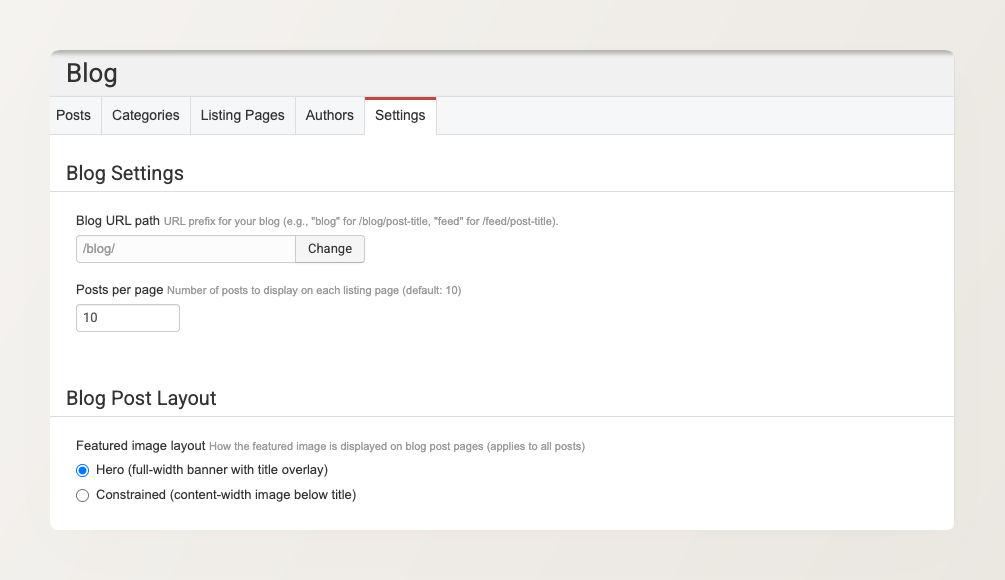
Go to Website > Blog > Settings to configure. The page is organized into four sections.
Blog Settings
- Blog URL path — The URL prefix for your blog (default:
/blog/), making your blog available atwww.yourdomain.com/blog. Click Change to update it (e.g., to/stories/or/journal/). - Posts per page — How many post cards appear on each listing page before pagination kicks in. Default is 10. 8-12 is a good range — enough to give visitors choices without overwhelming them.
Changing the blog URL path does not update existing post URLs. If you’ve already published posts and shared their links, those old URLs will continue working, but new posts will use the new prefix. A warning reminds you of this when making the change.
Blog Post Layout
Choose how featured images display on individual blog post pages:
| Layout | Description | Best for… |
|---|---|---|
| Hero (full-width banner with title overlay) | Featured image spans the full width with the title overlaid | Stunning landscape and travel photography |
| Constrained (content-width image below title) | Featured image at content width, title above | Posts where the text matters more than the image, or mixed image quality |
Choose Hero if you consistently have high-quality, wide-format travel photography. Choose Constrained if your image quality varies — it’s more forgiving with smaller or lower-resolution images. This setting applies to all posts.
Author Settings
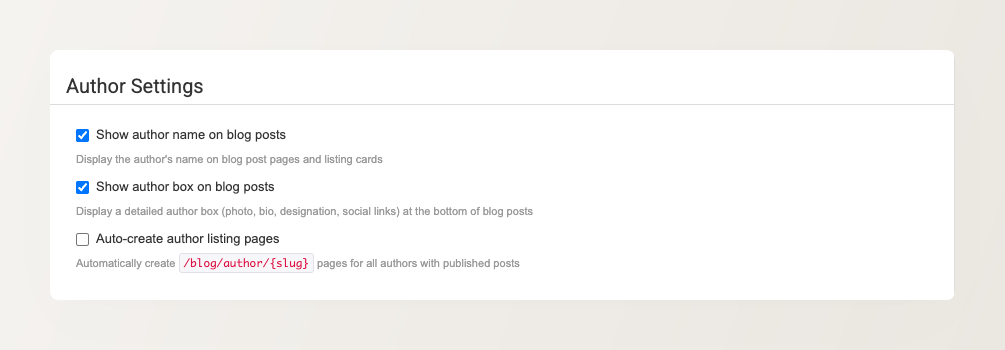
Three checkboxes control how authors appear on your blog:
- Show author name on blog posts — Display the author’s name on blog post pages and listing cards. If you have multiple authors, showing names adds a personal touch. If all content comes from one account, you might prefer hiding it for a cleaner look.
- Show author box on blog posts — Display a detailed author box (photo, bio, designation, social links) at the bottom of blog posts. See Managing Author Profiles for how to set up author details.
- Auto-create author listing pages — Automatically create
/blog/author/{slug}pages for all authors with published posts.
Category Settings
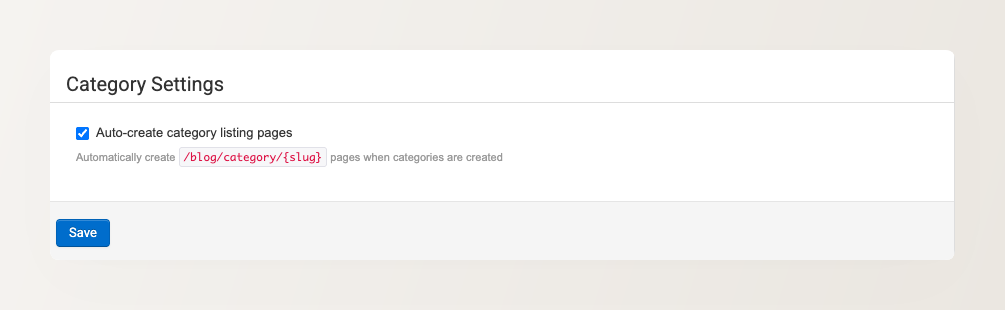
- Auto-create category listing pages — Automatically create
/blog/category/{slug}pages when categories are created.
How your blog looks on the storefront
Blog listing page
Your main blog page (/blog) shows a paginated grid of post cards with a sidebar listing categories and authors. Visitors can click through to category or author listing pages to filter posts.
Category and author listings
Category listings (e.g., /blog/category/adventure-travel) show only posts in that category. Author listings work the same way. Both use the same grid + sidebar layout.
Empty listing pages (no published posts matching the filter) return a 404 and are excluded from sitemaps automatically.
Blog post pages
Individual posts display:
- Breadcrumbs — Home > Blog > Post Title (visible on desktop and mobile)
- Featured image — in your chosen layout (hero or constrained), or no image if none was uploaded
- Post metadata — date, categories (clickable), and author (clickable, if enabled)
- Content — body text followed by any additional content sections
- Author box — photo, name, bio, and social links (see Managing Author Profiles)
Sitemaps
Published blog posts and active listing pages are automatically included in both your XML sitemap (for search engines) and HTML sitemap (for visitors). Blog posts use a priority of 0.60 and listings use 0.55.
Related Articles
- Creating and Managing Blog Posts — write, publish, and manage individual posts
- Managing Author Profiles — add bios, photos, and social links for your authors
- Adding a Blog Cards Section to Your Pages — showcase posts on other pages
- Getting Started with Your Blog