
Adding a Blog Cards Section to Your Pages
Overview
The Blog Cards section lets you showcase blog posts on any page of your website — your homepage, destination pages, about us, or any static page. It displays post cards in a carousel format with featured images, excerpts, and links to the full posts.
New Vacation Labs accounts come with a Blog Cards section already on the homepage.
Adding a Blog Cards section
- Go to Website > Pages and select the page you want to edit (e.g., Homepage).
- Click Add Section and choose Blog Cards from the dropdown.
- Enable the section using the toggle.
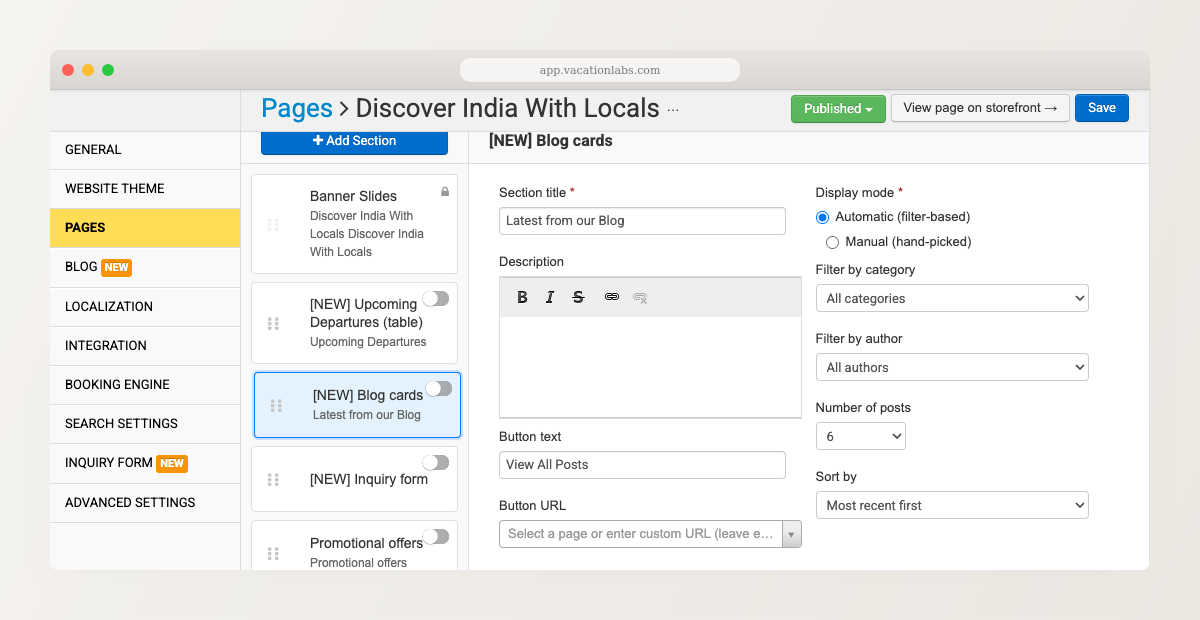
- Click the section to open its settings.
Automatic vs manual mode
Automatic mode
Blog Cards automatically selects posts based on your filters:
- Category filter — show posts from a specific category, or all categories
- Sort order — Recent (newest first), Oldest, or Alphabetical
- Post count — how many cards to display
This is the best choice for most pages — the section stays fresh as you publish new posts without any manual updates.
Manual mode
Hand-pick specific posts and drag to reorder them. Use this when you want precise control — for example, a curated “Our Best Posts” section on your About Us page.
Customization
- Section title — defaults to “Latest from our Blog”, but you can change it to anything
- CTA button — a “View All Posts” button that links to your blog listing page, or configure it to link to any URL
- Post count — in automatic mode, controls how many cards appear
How it looks
- Desktop — cards display in a horizontal carousel with navigation
- Mobile — horizontal scroll, one card at a time
- Posts without featured images show a placeholder
- Excerpts are truncated to 3 lines (with images) or 4 lines (text-only posts)
Blog Cards work best with posts that have featured images. If most of your posts don’t have images, the section switches to a text-only layout automatically.
Where to place Blog Cards for maximum impact
- Homepage — the most common placement. Shows visitors that your website is active and gives them a reason to explore beyond tours.
- Destination pages — a “Stories from Rajasthan” section on your Rajasthan collection page connects inspiration with bookable tours. Use automatic mode with a category filter matching the destination.
- About Us page — a manually curated selection of your best posts builds credibility and shows your expertise.
Related Articles
- How to add a new section on a page? — general guide for adding website sections
- Adding Multiple Sections to your Website — reordering and managing sections
- Creating and Managing Blog Posts — write posts that appear in Blog Cards
- Getting Started with Your Blog