
Managing Author Profiles
Overview
Author profiles let you add a personal touch to your blog. Each author can have a bio, designation, profile photo, and social media links — building credibility with readers and improving how your posts appear in search results.
Author profiles are managed from Website > Blog > Authors.
Setting up an author profile
- Go to Website > Blog > Authors.
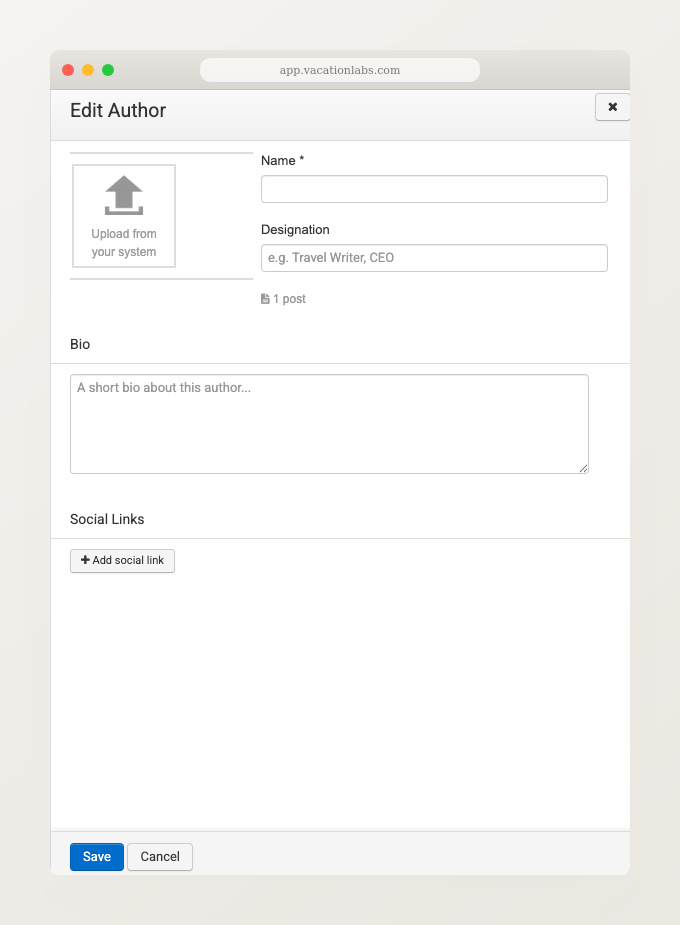
- Click Edit on the author row to open the Edit Author dialog.
- Fill in their bio and designation (e.g., “Travel Writer, CEO”).
- Upload a profile photo using the upload area on the left side of the dialog.
- Add social media links using the + Add social link button. Supported platforms: Facebook, Instagram, Twitter/X, LinkedIn, YouTube, and website URL.
- Click Save.
Enabling author profiles on the storefront
For author profiles to appear on your website, you need to enable settings under Author Settings in Website > Blog > Settings:
- Show author name on blog posts — displays the author’s name on blog post pages and listing cards.
- Show author box on blog posts — displays a detailed author box (photo, bio, designation, social links) at the bottom of blog posts.
- Auto-create author listing pages — automatically creates
/blog/author/{slug}pages for all authors with published posts, and adds author links to the blog sidebar.
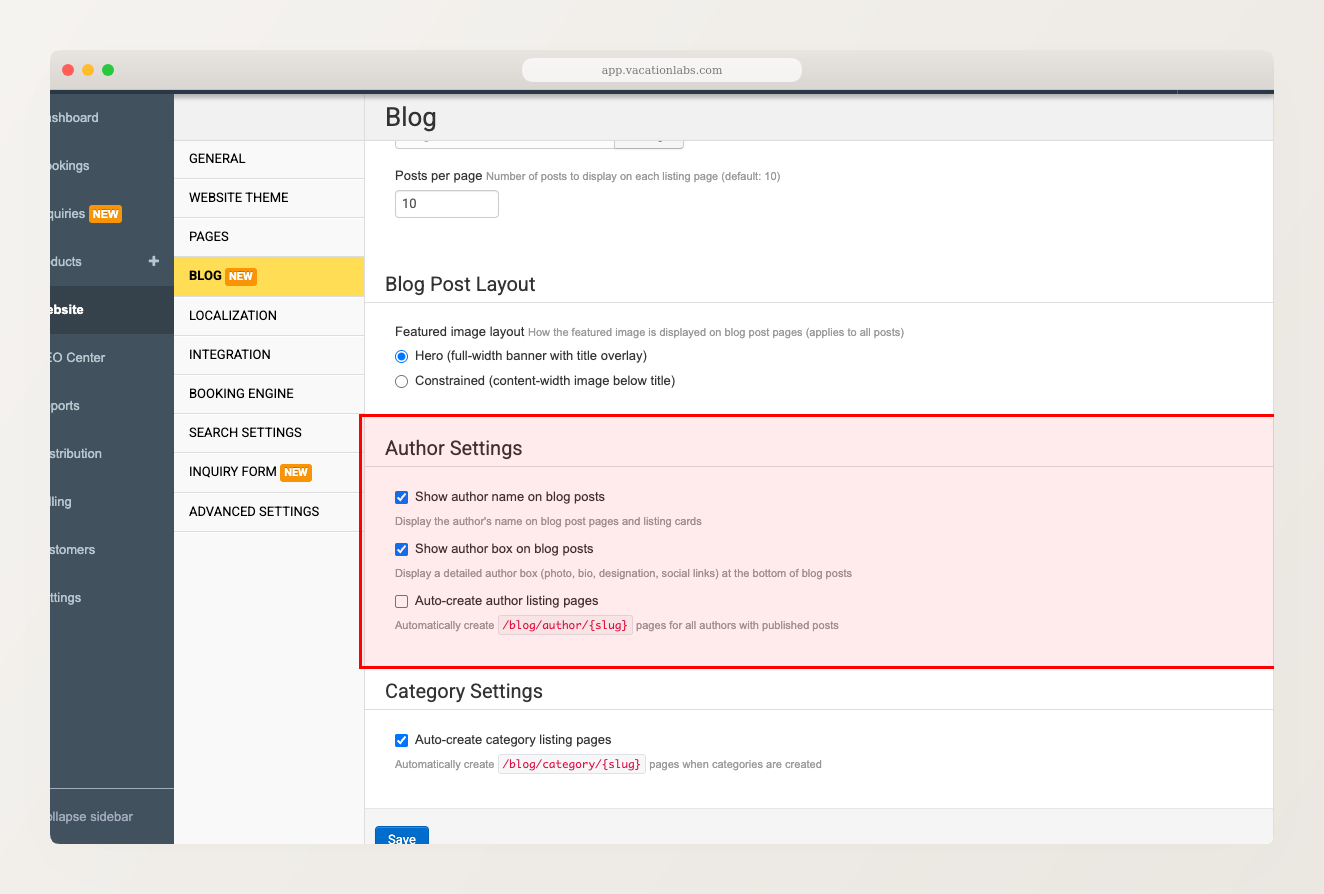
Enable all three settings for the full author profile experience. Without Auto-create author listing pages, author names won’t link to anything and won’t appear in the blog sidebar.
Author box on blog posts
When Show author box on blog posts is enabled and an author has a profile (bio, photo, or social links), an author box automatically appears at the bottom of their blog posts showing their photo, name, bio, and social link icons.
If the author only has a name and no additional profile information, the author box is hidden — since the name already appears in the post byline, showing an empty author box would be redundant.
Author listing pages
Each author with published posts gets a dedicated listing page showing all their posts.
The author listing page uses the author’s bio as its meta description by default. You can set a custom meta description via SEO Center if you prefer.
Search engine benefits
Author profiles automatically enrich your blog’s structured data (JSON-LD) that search engines read:
- Social links are included as
sameAsentries, helping Google connect your authors to their social profiles - Designation appears as the author’s job title
- Bio is included as the author description
- Profile photo is included as the author image
This can improve how your blog posts appear in search results, especially for authors who have established online presence across multiple platforms.