
Automatic Inquiry Assignment (Round-Robin) and Staff Visibility
Overview
When several people handle inquiries, two questions come up quickly: who should follow up on each new inquiry, and who is allowed to see whose inquiries. This article covers both.
- Automatic assignment routes every new inquiry to the right team member the moment it arrives, based on a rule you describe in plain English, so you are not hand-distributing inquiries all day.
- Staff visibility lets you limit what each salesperson sees in the inquiry list, so agents work their own inquiries without stepping on each other.
Creating or changing the automatic-assignment rule is limited to Reservation Managers. Assigning an inquiry by hand is separate: anyone with inquiry access can do that (see Assigning Inquiries to Your Team).
Group your staff into teams
Assignment rules can round-robin an inquiry within a team — for example, sharing every North India inquiry evenly among the agents you tag north-india-team. You build a team by tagging its members.
- Go to Main menu > Settings > Users & Permissions.
- Find a team member and open Actions > Edit roles & permissions on their row.
- In the Tags field, type a team name (for example
north-india-team) and add it. Give the same tag to everyone on that team. - Click Save.
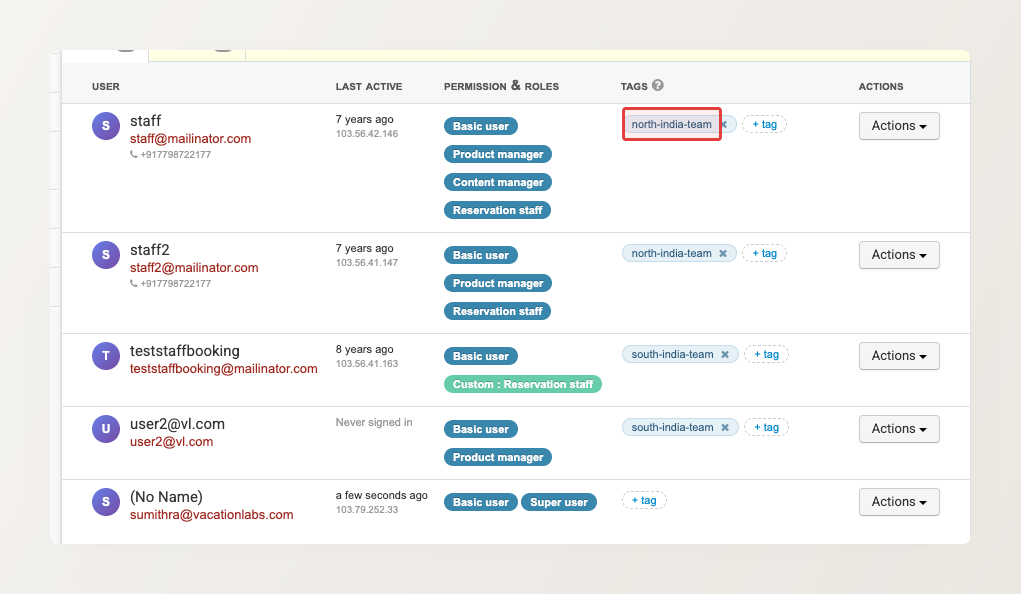
The tag is just a label. Name it after a region, a product line, or a shift — whatever suits your team. Once staff are tagged, your assignment rule can refer to the team by name.
Turn on automatic assignment
-
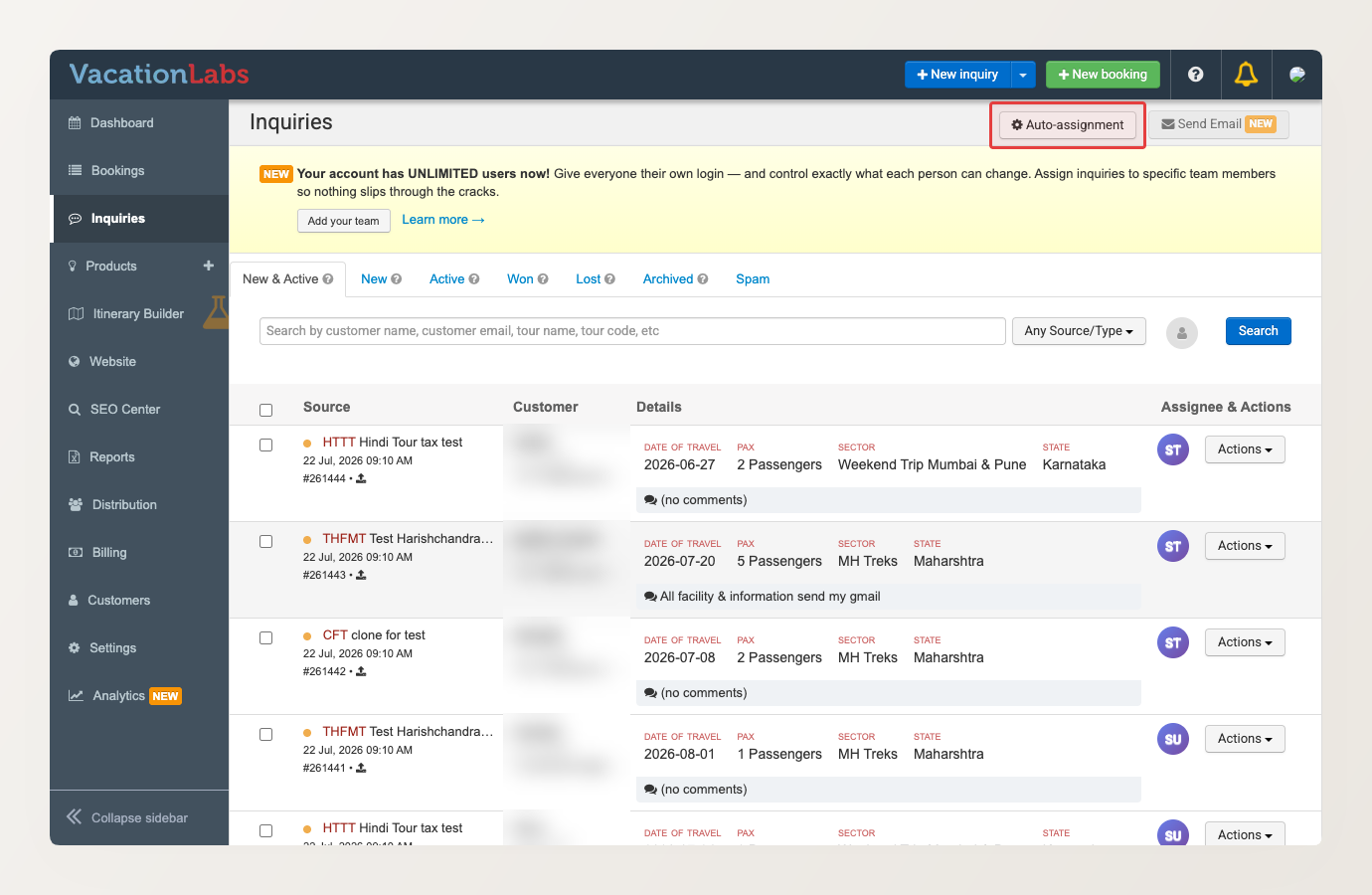
Go to Main menu > Inquiries.
-
Click Auto-assignment.
-
In Describe your assignment rule in plain English, write how inquiries should be distributed. You can combine several conditions, for example: route inquiries for a trip to the agents who handle that trip and round-robin among them; otherwise pick the team based on the customer’s state; otherwise leave the inquiry unassigned.
-
If you are not sure where to start, pick one of the starter rules at the top of the panel — such as Round-robin among everyone or Match agents to the trip’s collection — and edit it.
-
Set Test on the past [N] inquiries to how many recent inquiries you want to trial the rule against.
-
Click Continue.
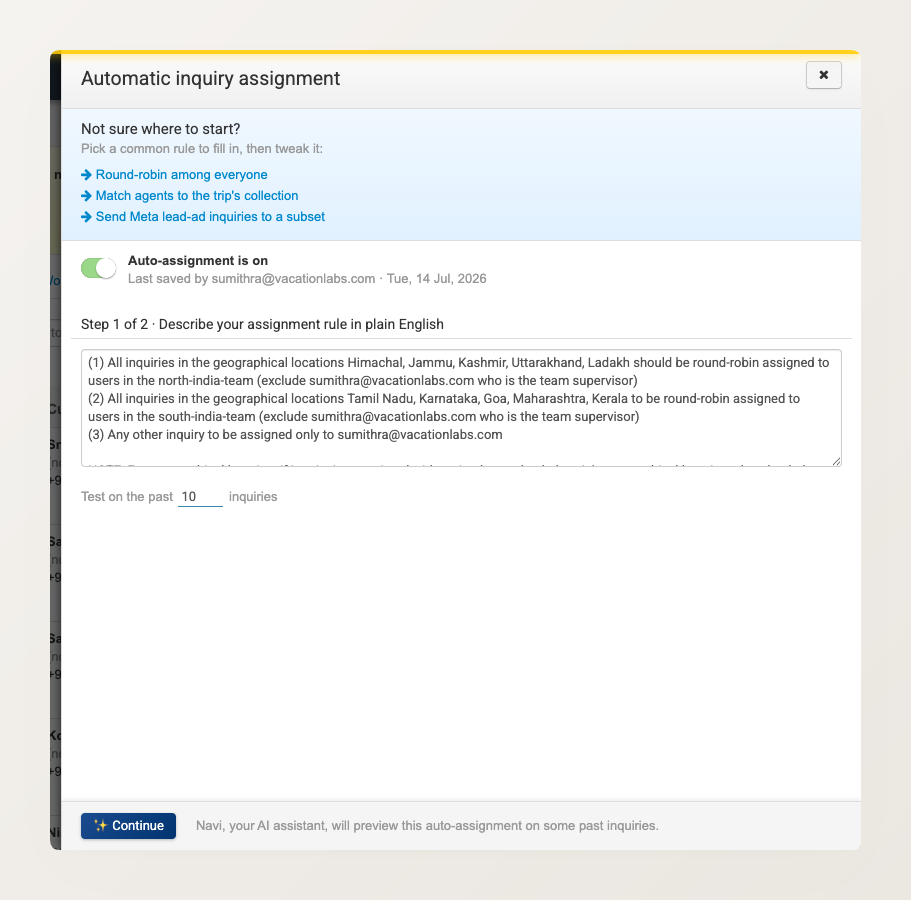
Navi, your built-in assistant, reads your description and turns it into a working rule.
You do not need to phrase the rule perfectly. If part of your description is vague, Navi still builds a working rule and shows you the assumptions it made in a highlighted note, so you can see how it interpreted you and correct it if needed.
Preview before you commit
Before a rule goes live, you see exactly what it would have done to your recent inquiries.
On the Review step, if your description left anything ambiguous, Navi shows a highlighted “Navi filled in some gaps” note listing the assumptions it made. You can go back and make the rule more specific if any are wrong. Below that, the What would happen table lists each past inquiry, who it would be assigned to, and why — in plain language, such as “round-robin: next in rotation among all agents is [name]”. Read down the list to confirm the rule behaves the way you intended.
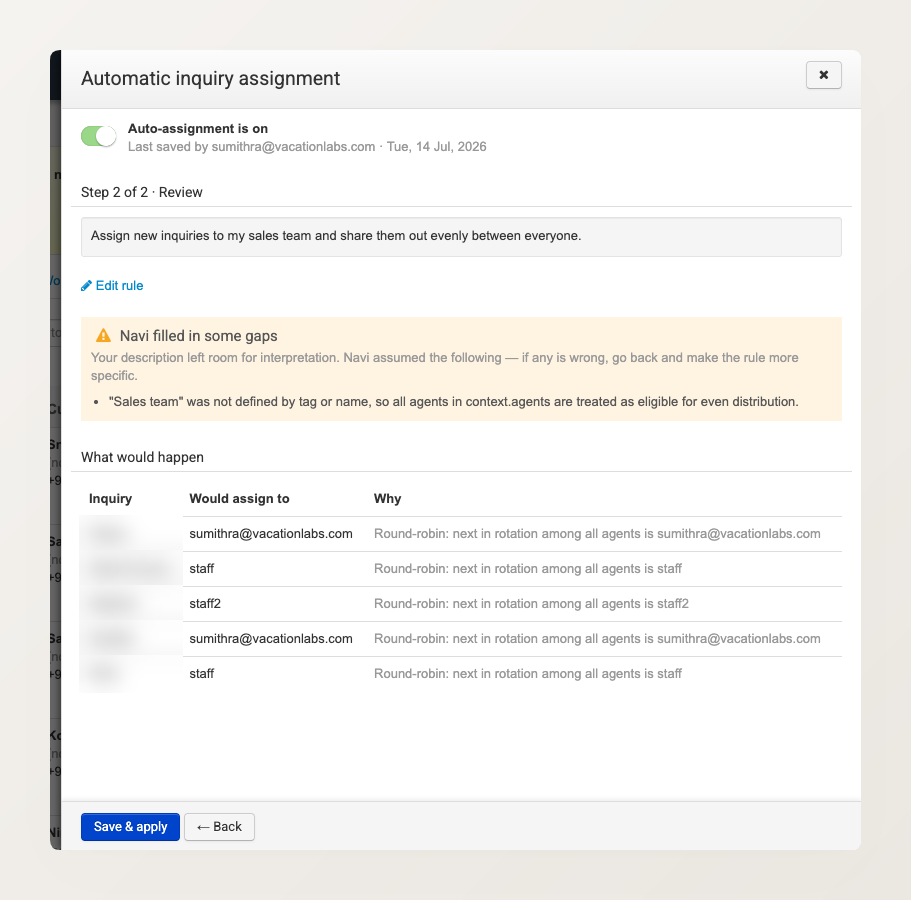
- To change the rule, click Edit rule, adjust your description, and preview again.
- When it looks right, click Save & apply. The panel shows a single on/off toggle and records who last saved the rule, so your team always knows the current state.
Assignment rules run on new inquiries as they arrive, including inquiries that come in through your website. They do not retroactively re-assign inquiries that already exist in your list. Existing inquiries stay as they are, and you can still assign those by hand.
What each salesperson sees
Once your team is working inquiries, you can limit each agent’s view so they focus on their own.
- Reservation Staff see only the inquiries assigned to them, plus any that are still unassigned. Inquiries already being worked by a teammate are hidden: the customer’s contact details are not shown, and the row cannot be acted on. This means no agent can pick up or interfere with an inquiry that belongs to someone else.
- Reservation Managers (and admins) keep full visibility of every inquiry and can assign or reassign freely.
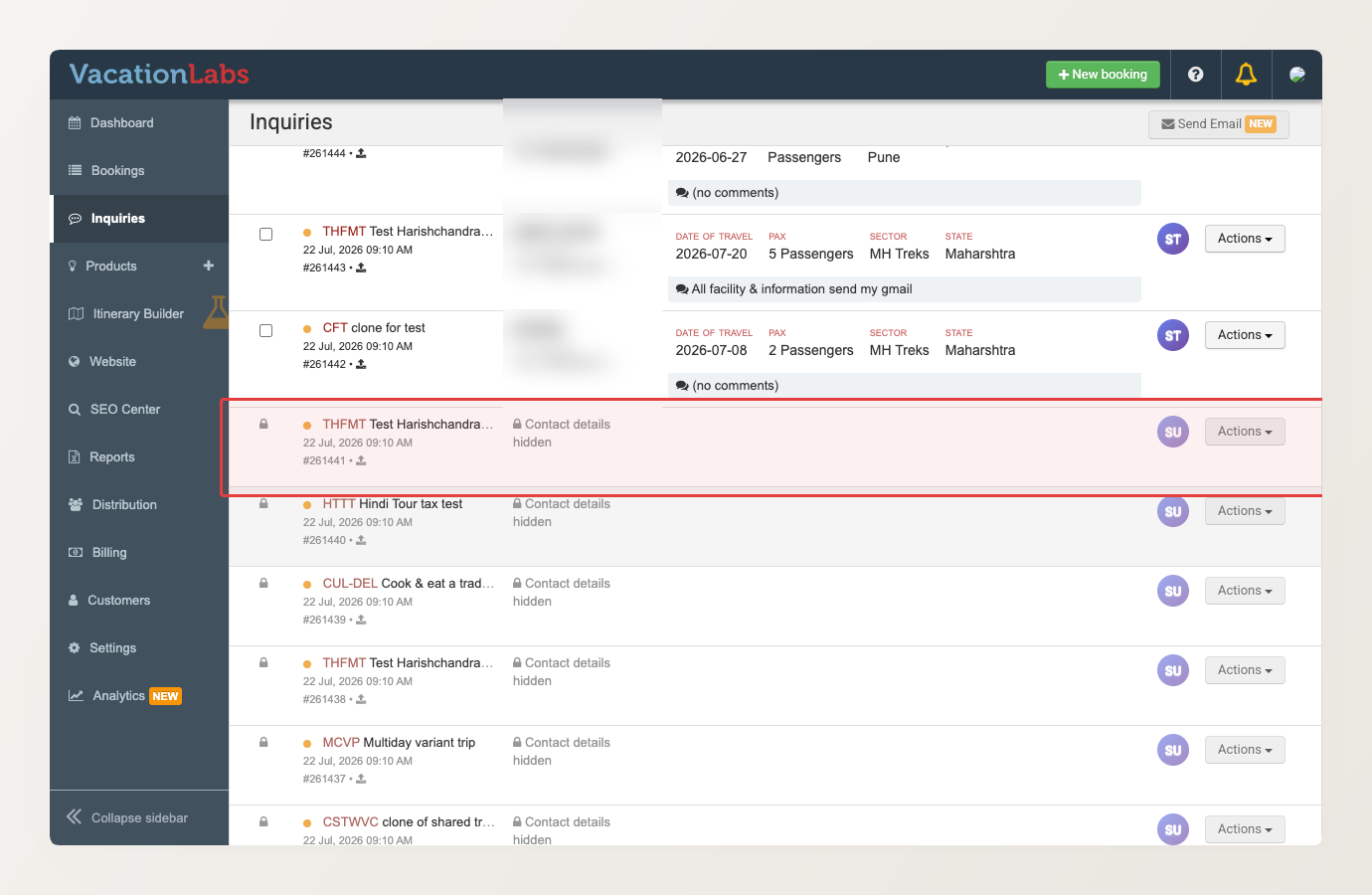
Which view a person gets follows their role: assign the Reservation Staff role for the restricted view, or Reservation Manager for full access. Existing role assignments carry over automatically, so there is nothing to migrate.
Claiming and releasing inquiries
A Reservation Staff member is not stuck waiting to be handed work. From the unassigned pool, an agent can:
- Claim an unassigned inquiry for themselves, and
- Release one of their own inquiries back to the unassigned pool for someone else to pick up.
An agent cannot hand an inquiry to a queue they would no longer be able to see. They can only claim to themselves or release to unassigned. Reassigning an inquiry from one agent to another is a manager action.
How to structure teams and rules
A few patterns that work well for tour operators:
- By destination or region. Tag agents
north-india-team,south-india-team, and so on, then route each inquiry to the team that matches the customer’s state or the trip’s location. This is the most common setup — customers get an agent who knows the region. - By product line. If certain agents specialise in, say, trekking versus city tours, match the inquiry to the agents who handle that trip’s collection.
- Round-robin within a small team. For a single shared queue, round-robin among everyone (or one tagged team) so inquiries are shared evenly and nobody is overloaded.
Start simple — one or two conditions with a sensible fallback (such as “otherwise assign to the team lead”) — and use the preview to confirm it does what you expect before turning it on.
Related Articles
- Managing Inquiries — overview of the inquiry system
- Assigning Inquiries to Your Team — assign or reassign an inquiry by hand
- Adding and Managing Team Members — create staff logins, set roles, and add team tags