
Release Notes • April 22, 2026 • Saurabh Nanda
The new Media Library gives you one place to browse, search, and manage every photo and video on your website. Instead of hunting for an image across dozens of tours and pages, you see all your media in a single grid, find any item by name, and check exactly where it is used before you touch it.
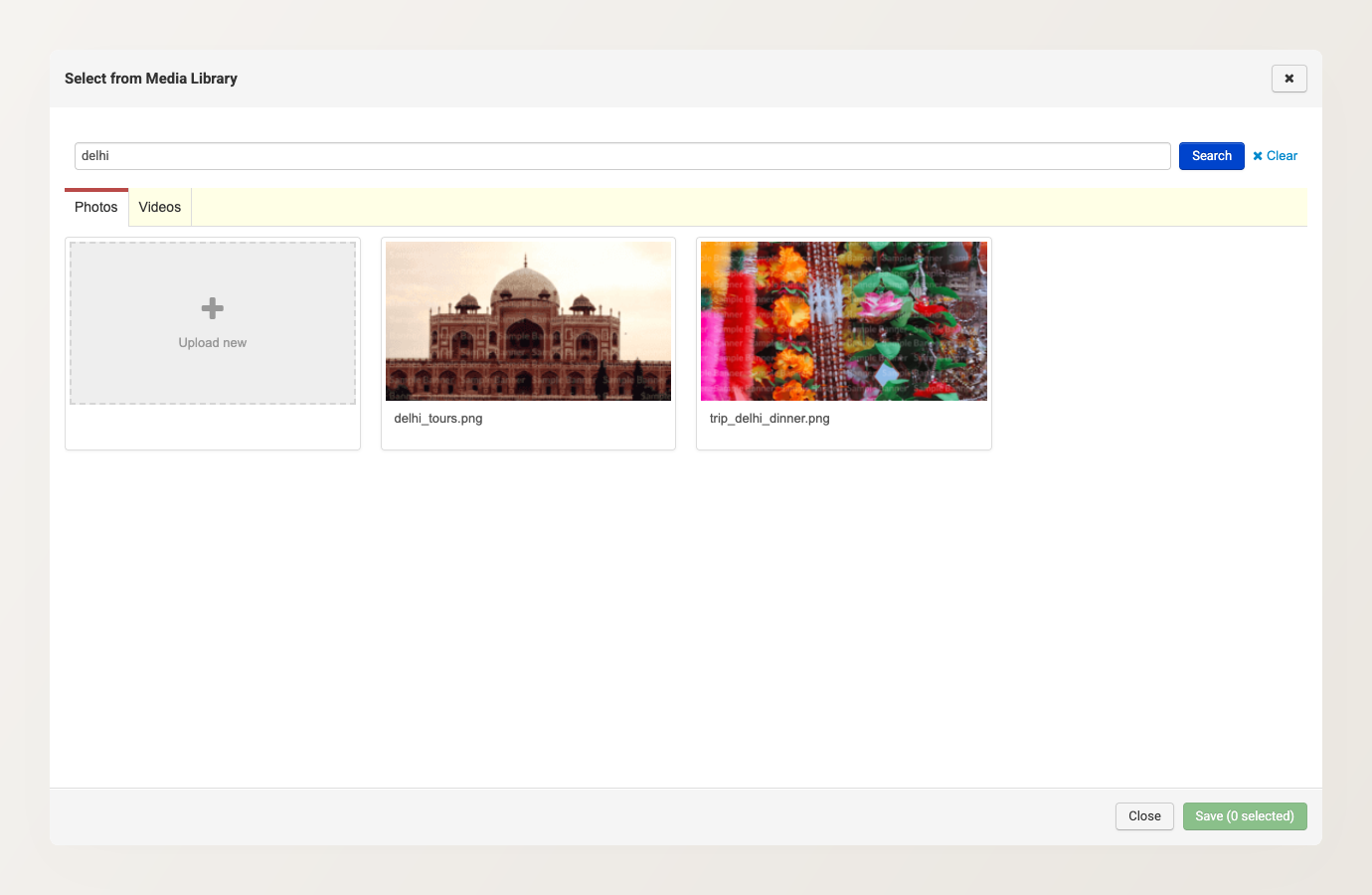
Open the Media Library from Products > Media Library. It has a Photos tab and a Videos tab, each showing your media newest-first, with search across filenames and captions (or video titles). You can edit a photo’s caption or a video’s details right on the card.
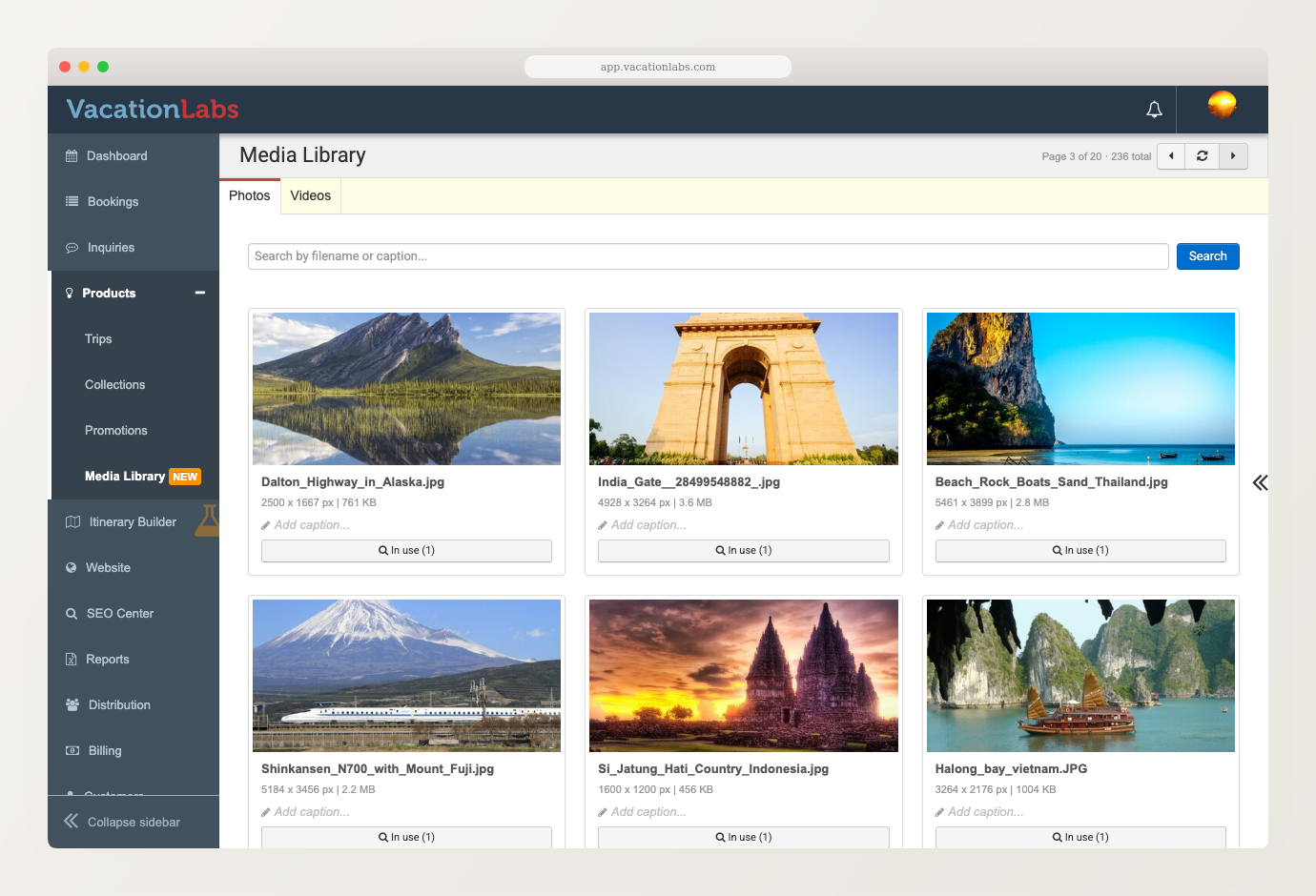
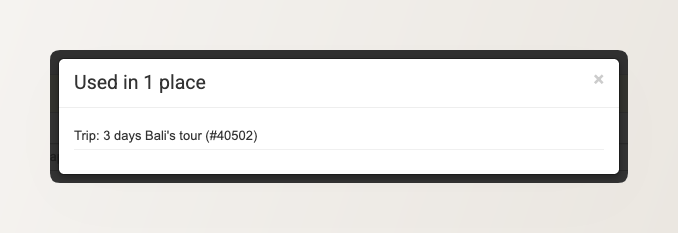
Every photo and video shows a usage count. Click In use (N) on any item to see the exact tours and pages that reference it, so you always know what depends on an image before you change it. An item used nowhere shows a Delete option instead, and deleting takes a press-and-hold rather than a single click, so nothing goes by accident.
Behind the scenes, photos and videos are now shared rather than copied. When you clone a tour, it reuses the original’s media instead of duplicating every file. For operators with large photo galleries, that removes the slow clones and timeouts that used to happen when cloning a tour with many images.
